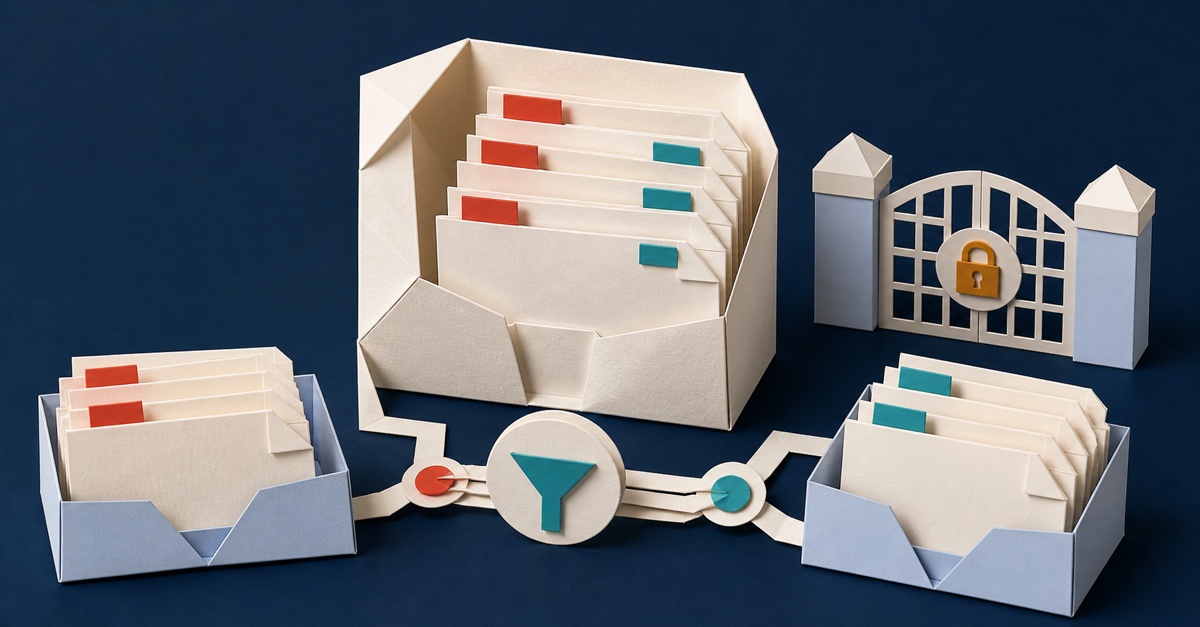
You can create multiple news feeds on one SharePoint site by classifying news pages and adding separate News web parts filtered to each classification.
Do not use a filtered feed to protect confidential news. Filtering and audience targeting shape what people see; permissions determine what they can open.
Before you start
You need permission to edit the page and manage columns in the Site Pages library. Test in a non-production page or unpublished version first.
Agree a small set of categories, who classifies each post, what happens when a category is blank and who reviews filters after a category changes.
For this example, create a Choice column named News category with Leadership update and Practical guide.
1. Add the classification field
- Open Site contents.
- Open Site Pages.
- Select Add column, then Choice.
- Name it News category.
- Add the approved choices and save.
The controls can vary as Microsoft updates the library experience. The durable design is the column in Site Pages, not a particular screenshot.
2. Classify some news
Open a news page's details or properties in Site Pages and set News category.
Tag several posts in each category before configuring web parts. Keep an untagged post as a negative test.
If an author cannot edit the field, check their library permission and whether the column is read-only or controlled by a content type.
3. Add and filter the News web parts
- Edit the homepage.
- Add the News web part.
- Choose the intended source, such as This site.
- Configure filtering by page properties.
- Choose News category and Leadership update.
- Apply the change and inspect the result.
Microsoft's News web part guidance documents sources, layouts, filtering and audience targeting.
Add a second News web part and filter it to Practical guide. Give each feed a visible heading.
4. Test indexing and empty values
Page-property filters can depend on SharePoint search. A newly changed value may not appear immediately.
If a post is missing, confirm the field is saved on the published page, the web part source is correct, the choice value matches, and the reader can open the page directly. Then allow for indexing and retest.
5. Use audience targeting carefully
Audience targeting can promote relevant news to selected groups. It is not security. A person with permission may still open the page from a link or search.
If confidentiality matters, set and test SharePoint permissions. Avoid large numbers of uniquely secured pages because they become hard to govern.
6. Publish and keep a recovery route
Test as a Visitor at common browser widths. Check categories, headings and the unclassified post.
Save the old page version and document the field and filter values. Version history provides a recovery route if a later edit breaks the page.
This method proves that the tested filters displayed the classified pages for the tested user. It does not prove that targeting secures content or that every change appears immediately.
For help with SharePoint news, page properties and permissions, join the SharePoint & Teams Admins Space.