Quick start
- 1Open Team → Boards and select New Team Board.
- 2Start blank, or copy an Official Board to get a proven route ready faster.
- 3Choose one useful outcome and include only the content people need to reach it.
- 4Explain why each important item matters and what members should do with it.
- 5Use Board reporting to improve the route and support the right people.
What a Team Board does
A Team Board collects the right content from across Spaces and puts it in the order your team should use it. You shape the route once; each member follows it in their own account while progress shows you where the team is moving or getting stuck.
- Bring courses, short briefings, Blueprints and other Boards into one place.
- Explain the outcome so people understand why the Board matters.
- Make the essential route required and keep deeper material optional.
- Give every active member the same clear path without building a course from scratch.
Create a Team Board
Start blank when the outcome is specific to your team. Or copy an Official Board when Collab365 has already arranged a strong route, you can still adapt the copy to fit your people and priorities.
- 1.Open Team → Boards and select New Team Board.
- 2.Choose Blank Team Board or an Official Board.
- 3.Give the Board a clear name and a short explanation of what it will help people achieve.
- 4.Create the Board. Active team members are automatically included in the shared path.
- 5.Open the Board editor and tailor the route before you introduce it to the team.
New Team Board
How would you like to start?
Start from an empty path, or copy an Official Board with its items, outcome and cover image.
Create from blank
Blank Team Board
Create a shared path first, then add courses, briefings and blueprints for the team.
Board name
Overview
Start from Official Board
Ready-made paths with a clear order, outcome and cover image.
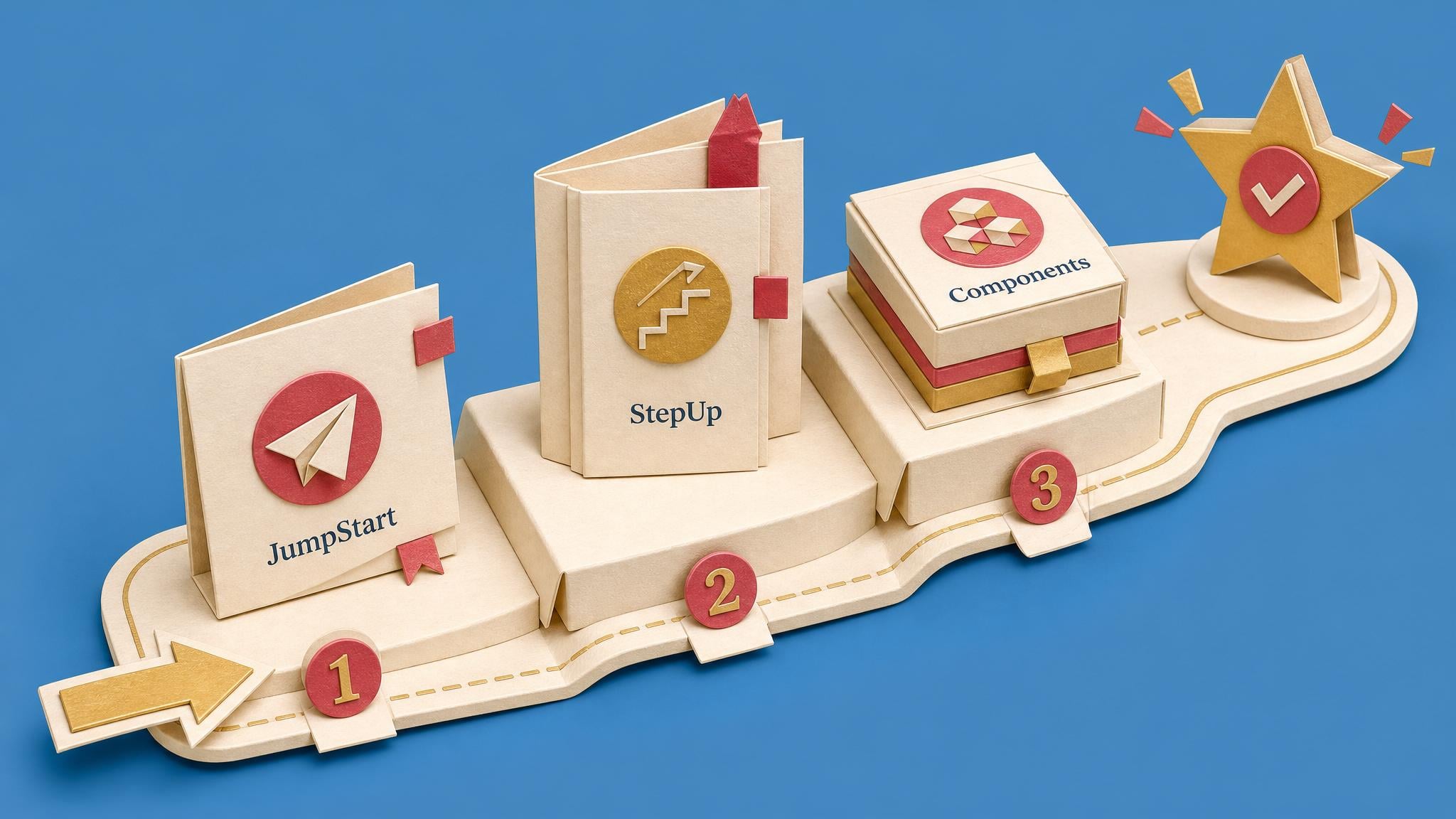
3 items · 3 focused sessions
Power Apps Success Path
A ready-made route with a real outcome, order and cover image.
Use for team
3 items · 3 to 6 weeks
Power Automate Success Path
A ready-made route with a real outcome, order and cover image.
Use for teamDesign the path around an outcome
A strong Board is not a pile of links. It gives people a reason to begin, the few things they need to learn and a practical way to use them at work.
- Start here: explain the goal, change or problem the Board supports.
- Core skills: include only the knowledge everybody needs.
- Apply it at work: add a practical task or Blueprint that helps someone produce something useful.
- Optional next steps: give specialists a deeper route without slowing everyone else down.
- Finish clearly: tell members what to do once they complete the Board.
Copilot rollout essentials
Understand the safety baseline, practise the core habits and apply them to one real meeting workflow.
Courses move automatically as you complete lessons. Briefings and blueprints are ticked off here with the manual status buttons on each item.
Your progress on this shared Board is visible to the team owner.1 of 3 required items complete
1 optional item is shown but does not affect progress.
Why our Copilot rollout needs a shared approach
The practical risks, responsibilities and decisions to settle before wider use.
Read this first and note the two guardrails that affect your role.
Set progress
Choose where you are.
Use Copilot safely with meetings and documents
Build the core habits for working with real company information.
Complete all six lessons before moving to the practical workflow.
Updates when lessons are completed.
Create a safe meeting follow-up workflow
A practical pack for producing one repeatable piece of work.
Use this with AI, test the output and keep your final version.
Set progress
Choose where you are.
SharePoint knowledge readiness check
A deeper route for people who own sites, permissions or knowledge content.
Use this only if SharePoint governance is part of your role.
Set progress
Choose where you are.
Manage and improve the Board
Team admins, the people allowed to manage members and Boards, can update the route as the work changes. Edit the name, outcome, timeframe, content order and member guidance once, save it, and the shared route stays current for everyone.
- Use “Why this item” to connect the content to the team’s real work.
- Use “Member instruction” to say what people should notice, decide or produce.
- Reorder the path if people are reaching difficult material too early.
- Remove an item without deleting the original content or someone’s historic course progress.
- Delete the Team Board when the route is no longer useful.
See progress through the Board
The billing owner, the person who owns or pays for the Team plan, can open a Team Board report to see overall completion, who has started, where each person is up to and how far members have moved through every item.
- Compare members who have not started, are in progress or have completed.
- Use average completion to understand direction, not to score people.
- Find the first item where progress drops, which often reveals an unclear instruction or difficult step.
- Filter the member list so reminders go only to the people who need them.
- Improve the path when several people are stuck in the same place; nudge an individual when the route itself is working.
Team Board
Copilot rollout essentials
A focused route through the safety baseline, core habits and first real workflow.
Work through BoardTeam average
64%
Team progress
Refreshed just nowMembers
12
Not started
1
In progress
7
Completed
4
Start here briefing
Read this first so the reason for the rollout is clear.
Open itemCopilot safety course
Complete the six lessons before using live company information.
Open itemMeeting workflow Blueprint
Use the Blueprint to build and test one repeatable workflow.
Open itemMember progress
Use a practical review rhythm
You do not need to watch the report every day. A few well-timed checks are enough to spot a weak starting point, improve the route and support the right people.
- After week one: check how many people started and where the first drop appears.
- Halfway through: clarify confusing instructions or move difficult material.
- At the target date: review completion alongside questions and real use at work.
- After the rollout: keep, update or remove the Board deliberately.
Final checklist
Related guide
Spaces Team Initial Setup Guide
Set up the team and confirm that the right people can access Spaces.
Also useful
Spaces Team Ongoing Management Guide
Handle starters, leavers, seats and progress checks with confidence.