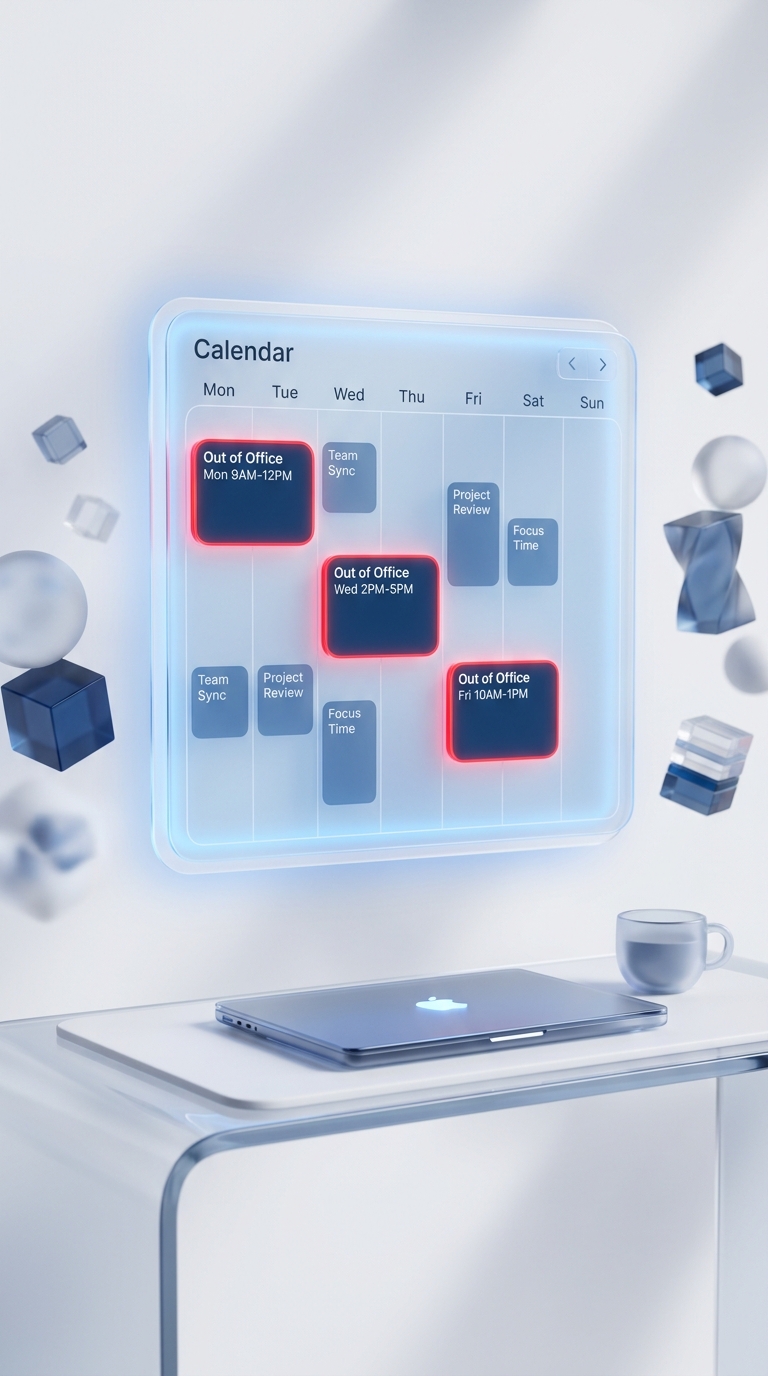
How to Set a Recurring Weekly Out of Office in Outlook with Power Automate
Outlook lets you schedule automatic replies for one date range. It does not give you a weekly recurrence rule for mailbox automatic replies. That is awkward if, for example, you never work Fridays and need the same out-of-office reply every week.
You can automate it with Power Automate, but there is an important catch: an automated flow changes the same mailbox setting as a reply you schedule manually for annual leave. A flow that blindly switches the setting on and off can replace a holiday message or disable it too early.
This guide uses two small scheduled flows and an ownership check:
- a start flow enables your regular weekly reply;
- a stop flow disables it when you return;
- both flows look for a unique phrase in the reply before changing anything.
The two-flow design also avoids fragile “add 24 hours” date arithmetic. Each trigger runs at a named local time in the time zone you select, so you control the start and finish separately.
There is still one hard boundary: an Exchange mailbox has one automatic-replies configuration. If you schedule a future holiday reply and then let the weekly flow write a new configuration, the weekly flow can replace that future schedule. The marker is a defence against an existing different message; it is not permission to forget holiday exceptions. Pause the weekly flows before scheduling leave, or make one governed automation own both weekly and holiday schedules.
Short answer: use this pattern for one user's Exchange Online mailbox. Test it with that user's connection. Treat shared mailboxes as a separate administrative scenario.
What this automation changes
Automatic replies are a mailbox-level setting in Exchange Online. They are not the same as a calendar event marked Out of Office, and changing one does not automatically create or update the other.
Microsoft's Outlook automatic-replies instructions describe a single scheduled start and end. Power Automate supplies the weekly recurrence: its trigger starts a flow every chosen week, and the Office 365 Outlook connector changes the mailbox's automatic-reply setting.
This matters when testing. A green flow run proves that Power Automate completed an action; it does not prove that the right message is active in Outlook. Always check the mailbox setting and send a test message from an allowed sender.
Before you build it
You need:
- a work or school mailbox in Exchange Online;
- permission to create cloud flows in your organisation;
- an Office 365 Outlook connection owned by the person whose mailbox will be changed;
- the exact weekly start and return times;
- an agreed rule for holidays and other manual automatic replies.
The Office 365 Outlook connector is classed as a standard connector, but that is not an unconditional licensing promise. Microsoft's Power Automate licensing FAQ says select Office 365 licences include limited Power Automate use rights for personal productivity, including scheduled flows and standard connectors. Your organisation's licence, environment policy and intended use still apply.
Choose an ownership phrase
Put a short, visible phrase in the weekly reply that will not appear in a holiday message. For example:
This is my regular Friday non-working-day reply.
The flows use this phrase as an ownership marker. If the mailbox contains a different automatic reply, they stop instead of assuming they own it.
This is a safety convention, not a transactional lock. Someone can still edit the setting between the check and the update, and MailTips may not be a complete inventory of future intent. For a high-impact mailbox, use an administrator-owned process with explicit exception data and monitoring.
Flow 1: enable the weekly reply
Microsoft documents the basic path for a recurring flow under Create a scheduled cloud flow.
1. Create the weekly trigger
In Power Automate:
- Select My flows.
- Select New flow > Scheduled cloud flow.
- Name it
Start weekly out of office. - Choose the first start date and time.
- Set it to repeat every 1 week.
- Open the Recurrence trigger's advanced schedule and select the correct day.
- In the trigger settings, select your actual time zone.
Do not leave the time zone implicit. If your working pattern follows UK local time, choose the Windows time-zone label that Power Automate shows for the UK; do not replace it with a fixed UTC offset. A named zone can apply daylight-saving rules, while a hard-coded +00:00 cannot describe both winter and summer.
Run the trigger a few minutes after the nominal boundary, such as 00:05 instead of exactly 00:00, unless your business process genuinely requires midnight. It makes the test window easier to observe and avoids building a promise around exact-to-the-second execution.
2. Read the current automatic reply
Add the Office 365 Outlook action Get mail tips for a mailbox (V2) and enter your own mailbox address.
The connector documentation says this action can return automatic-reply information. Microsoft also documents automatic-reply MailTips as a message plus scheduled start and end values in the Graph resource model.
Use the automatic-reply message exposed by the action's dynamic content. Avoid copying a hard-coded JSON path from a screenshot: action names and generated internal identifiers can differ between flows.
Availability boundary: Microsoft's connector reference says Get mail tips for a mailbox (V2) is not available in GCC High and Mooncake. If the action is absent in your environment, use the exception-list approach below or have an administrator implement an approved alternative.
3. Add the ownership condition
Add a Condition with this policy:
- if the current automatic-reply message is blank, continue;
- if it contains your exact ownership phrase, continue;
- otherwise, stop the flow and notify the owner.
The second branch is deliberately conservative. A different message may be annual leave, sickness cover or an administrator's announcement. The flow does not know the author's intent, so it must not overwrite it.
For the stop branch, add a notification that includes the run time and says the weekly reply was skipped because another automatic reply was detected. Do not include the full existing reply in a broad Teams channel or email distribution list; it may contain personal information.
4. Enable the reply
In the continue branch, add Set up automatic replies (V2) from the Office 365 Outlook connector.
Configure it as follows:
- Status: Always enabled
- External audience: None, Contacts only or All, according to your organisation's policy
- Internal reply: your regular weekly message, including the ownership phrase
- External reply: an approved external version that discloses only what external senders need to know
The connector action is documented as setting automatic replies for your mailbox. That wording is why this guide uses the mailbox owner's connection and does not present delegated shared-mailbox access as a supported shortcut.
Save the flow. Before enabling the real weekly schedule, use Test with a controlled mailbox and check the result in Outlook on the web.
Flow 2: disable only the reply this automation owns
Create a second scheduled cloud flow called Stop weekly out of office.
Use another weekly Recurrence trigger:
- select the day and time you return;
- select the same named time zone as the start flow;
- confirm that the first run occurs after the first start run.
Then add Get mail tips for a mailbox (V2) and a Condition:
- if the current automatic-reply message contains the ownership phrase, continue;
- if it does not, stop and notify the owner.
In the continue branch, add Set up automatic replies (V2) with Status set to Disabled. Complete any fields the designer marks as required, even though the reply text is not used while the status is disabled.
This second guard protects a different reply added after the weekly start flow ran. If somebody replaced the regular Friday message with a two-week annual-leave message, the ownership phrase is gone and the stop flow leaves the mailbox alone. It does not preserve a future holiday schedule that the weekly start flow has already overwritten.
Handling annual leave and other exceptions
The marker check is useful, but it is not the only exception policy you can choose.
Option 1: pause both flows
For one person and occasional leave, this is the simplest policy:
- turn off both weekly flows before setting the holiday reply;
- set the holiday automatic reply in Outlook;
- turn the weekly flows back on after returning;
- verify their next scheduled run times.
Put this in the person's leave checklist. A process that depends on memory should say so plainly.
Option 2: keep an exception list
For a team-managed solution, store exception ranges in a SharePoint list with fields such as:
- mailbox address;
- exception start;
- exception end;
- enabled;
- owner or reason.
Treat that list as the scheduling source of truth, not just a last-minute check. If a future holiday schedule is managed directly in Outlook while the weekly flow continues to write the mailbox setting, an earlier weekly run can replace it. A governed solution should use the list to decide which message owns the mailbox at each change boundary. Restrict the list so only appropriate people can see leave information, and decide who removes expired exceptions.
This is more work, but it makes exceptions explicit and auditable. It is safer than trying to infer the meaning of every existing reply from its text.
Option 3: use an administrator-owned mailbox process
If the mailbox is customer-facing, regulated or business-critical, ask the Microsoft 365 team to own the automation. They can choose an approved Exchange or Microsoft Graph approach, define permissions, log changes and provide an operational owner. A personal flow should not silently become critical infrastructure.
Shared mailboxes are a different case
Do not assume that Full Access or Send As makes the connector's Set up automatic replies (V2) action target a shared mailbox. Microsoft's connector reference describes the action as operating on your mailbox.
Microsoft documents a supported manual route for shared-mailbox replies in Outlook on the web: open the other mailbox, then configure its Automatic replies settings. For recurring automation, involve the Exchange administrator and use only a method whose target mailbox and permissions have been verified in your tenant.
Test the complete weekly cycle
Do not test only the start flow. Use a temporary schedule a few minutes ahead and prove the whole state transition.
- Start with automatic replies disabled.
- Run the start flow.
- Confirm in Outlook on the web that the correct internal and external settings are active.
- Send one internal test message.
- If external replies are enabled, send one test from an approved external account.
- Run the stop flow.
- Confirm the mailbox setting is disabled.
- Put a different manual reply in the mailbox and run both flows again.
- Confirm that both flows take their safe branch and leave the manual reply unchanged.
- Check the next scheduled times in each Recurrence trigger, including the week of your next daylight-saving transition.
Record who owns the flows, the Outlook connections they use, the ownership phrase and how the owner is notified of skipped or failed runs.
Troubleshooting
The flow ran at the wrong local time
Check the Time zone setting on both Recurrence triggers. Do not repair a local schedule by adding a fixed hour to UTC; that can be wrong after a daylight-saving change. Re-save the triggers and inspect their next run times.
The action changed the wrong message
Turn off both flows, restore the intended automatic reply in Outlook, then review the ownership phrase and both Conditions. The start flow should continue only for blank or owned content; the stop flow should disable only owned content.
MailTips is blank or unavailable
Confirm the mailbox address and connection. Check the connector reference for your cloud. If MailTips is unavailable or unreliable for your required scenario, remove any claim that the flow protects other replies and use a maintained exception list or an administrator-owned solution.
The flow is green but nobody receives a reply
Check the mailbox's Automatic replies page, the external-audience setting and your organisation's mail policies. A successful Power Automate action is not delivery proof. Test with an internal sender first, then with a permitted external sender if external replies are part of the requirement.
The flow stopped after its owner changed role or left
Personal connections have an owner. Reassign the process deliberately, replace or reauthenticate its connections, and repeat the full test. For a team dependency, move the solution into an administered environment with a documented support owner.
Frequently asked questions
Can Outlook schedule a recurring out-of-office reply every week?
Outlook's documented automatic-replies interface schedules one date range; it does not expose a weekly recurrence rule. A scheduled Power Automate flow can provide the weekly trigger and update the mailbox setting.
Why use two flows instead of one 24-hour calculation?
Two Recurrence triggers let you set the start and return as local wall-clock times. A fixed 24-hour UTC window is not the same as every local day when daylight-saving time changes.
Will this overwrite my annual-leave automatic reply?
Yes, it can. The ownership-marker check makes the flows stop when they see a different current message, but it cannot turn one mailbox setting into multiple independent schedules. Pause both weekly flows before scheduling leave, or make one governed process own weekly and holiday changes.
Does this require Power Automate Premium?
The Office 365 Outlook connector is a standard connector, and Microsoft says select Office 365 licences include limited Power Automate rights for personal productivity. Entitlement still depends on the user's licence, organisational policy and scenario, so verify it rather than publishing a blanket no-premium promise.
Can I use the same flow for a shared mailbox?
Do not assume so. The connector documents the automatic-replies action for your mailbox. Microsoft provides a separate shared-mailbox configuration route in Outlook on the web; recurring shared-mailbox automation should be designed and authorised with the Exchange administrator.
Build it with people who maintain Power Automate in the real world
If this weekly reply is only the start—and you also need exception data, monitoring, ownership and a safe handover—join the Power Automate Builders Space. Bring the flow, the mailbox boundary and the failed test: that is enough for a useful technical discussion.