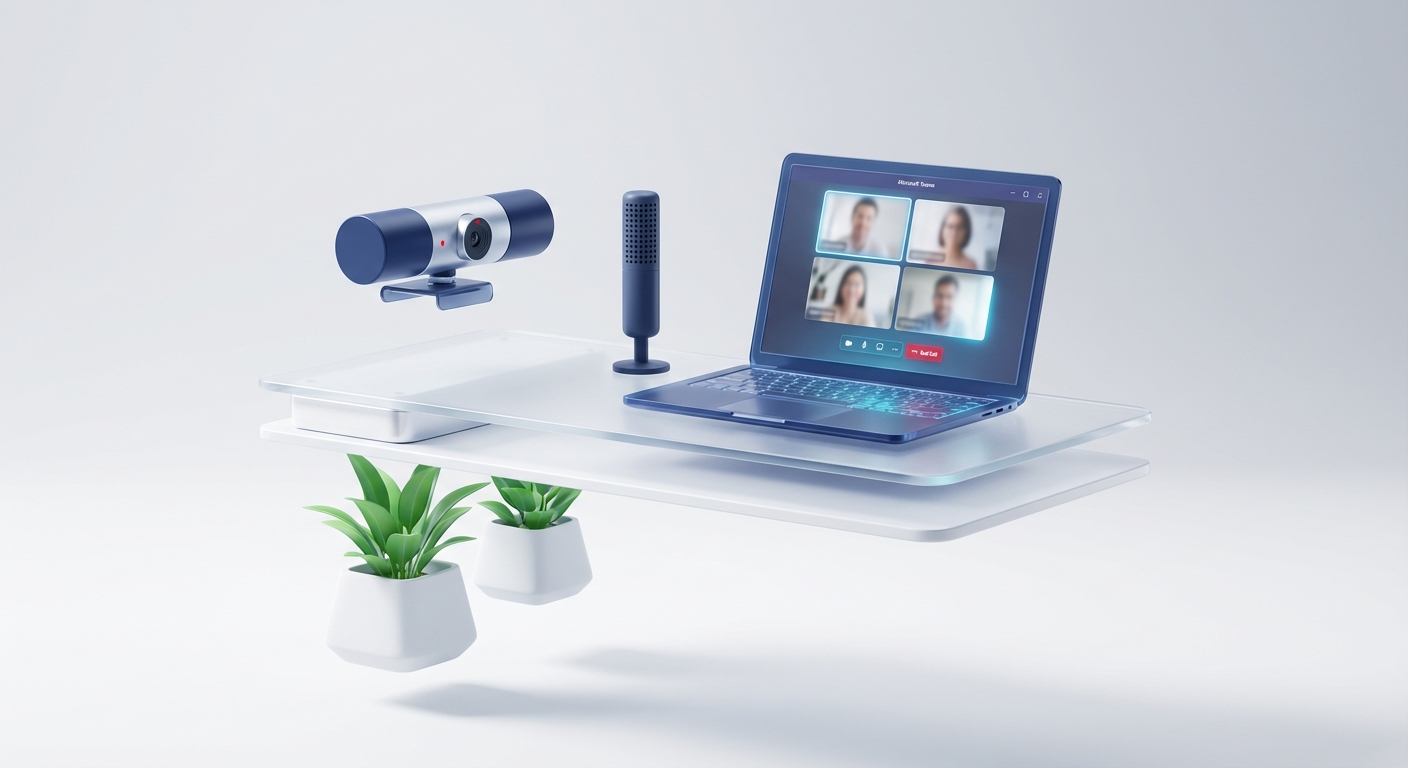
Test the microphone, speaker and camera before the meeting, then change only one layer at a time when something fails. Teams settings, the operating system, the browser and the meeting policy can each block a device.
Randomly changing all four makes the fault harder to find.
Set devices in Teams desktop
- Select Settings and more > Settings > Devices.
- Choose the primary audio device, speaker, microphone and camera.
- Use the camera preview.
- Select Make a test call if your account and client show it.
You can also review microphone sensitivity, noise suppression, voice isolation, high-fidelity music mode and spatial audio. Some options need compatible hardware, a voice profile or administrator support.
Change audio during a meeting
Select the arrow beside Mic in the meeting controls. Choose a different speaker or microphone, or open More audio settings.
The change applies immediately. Tell the other participants before testing a noisy input.
If you need people to hear a video or application:
- Select Share.
- Turn on Include sound.
- Select the screen or window to share.
All computer audio, including notification sounds, may be heard. On macOS, Microsoft says the current Teams audio driver is needed for computer-audio sharing.
Mobile audio and video
Before joining on mobile, use the pre-join screen to mute the mic, select the speaker or choose another available audio source.
During the meeting, tap Mic to mute or unmute and Speaker to change the output. Mobile exposes fewer device controls than desktop.
If a mobile mic or camera is unavailable, check iOS or Android app permissions. Teams cannot override a permission denied by the operating system.
Web browser checks
Teams for web also needs browser permission for the microphone and camera. Confirm:
- the correct site has permission;
- the browser selected the intended device;
- another app is not holding the camera; and
- the browser version is supported.
Test the desktop client if you need to distinguish a browser problem from an account or policy problem.
Organiser and admin controls
A meeting organiser, co-organiser or presenter can restrict attendee microphones and cameras. Teams meeting policies can also control audio, video and content sharing.
If your own device works in a test call but cannot be enabled in one meeting, check your meeting role and the organiser’s settings before reinstalling Teams.
Troubleshoot in a fixed order
- Hardware: Is the device connected, powered and selected?
- Operating system: Does Windows, macOS, iOS or Android allow Teams to use it?
- Browser: If using Teams web, does the site have permission?
- Teams: Is the correct device selected?
- Meeting: Does your role permit the action?
- Policy: Does the same problem follow the account to another device?
Use a test meeting with non-sensitive content. This guide cannot prove call quality in your network, room or tenant.
Keep Teams support grounded
For practical help separating client faults from Teams policy, join the SharePoint & Teams Admins Space.