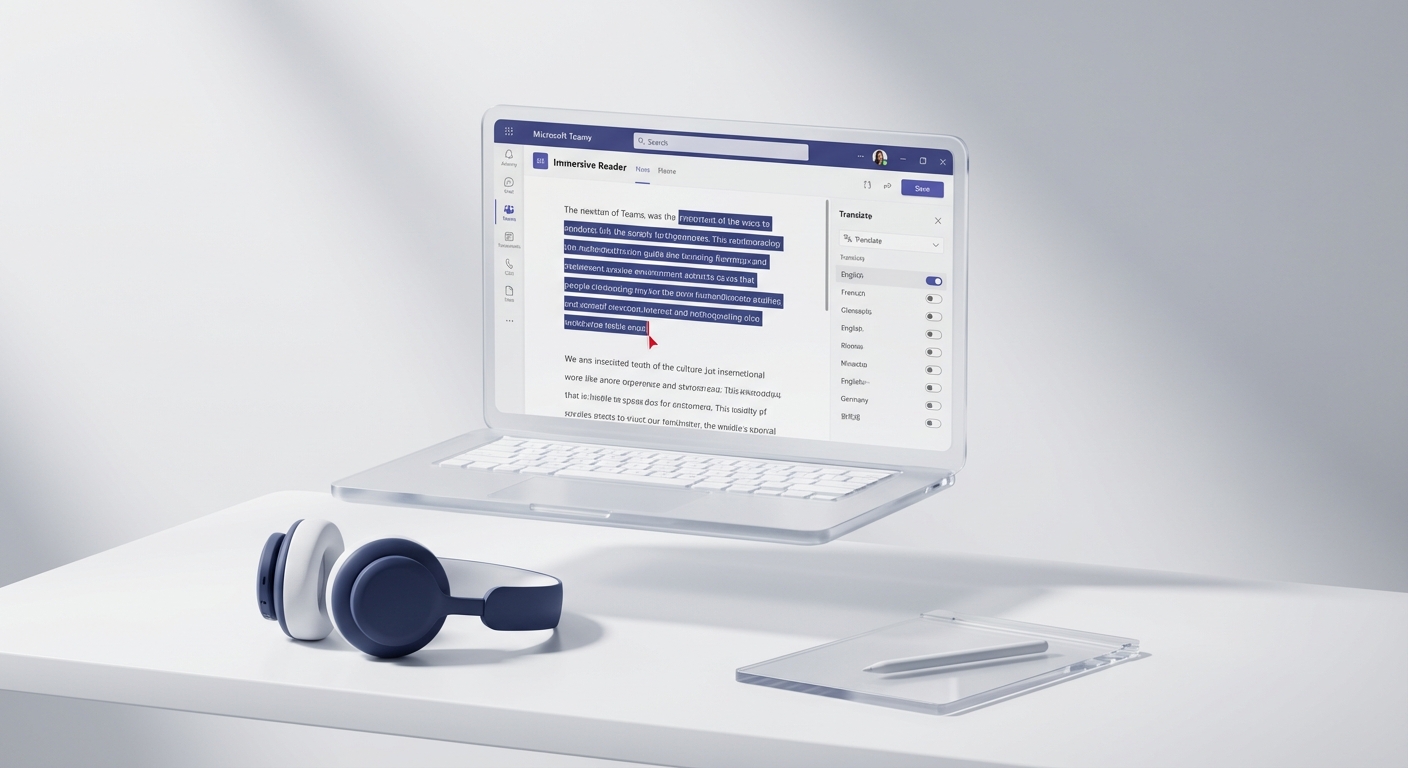
Immersive Reader can open an individual Microsoft Teams chat or channel message in a focused reading view. From there, available controls can read the text aloud and change how it is displayed. The exact options depend on the language, product and client.
Open a message in Immersive Reader
In the Teams desktop or web client:
- Open the chat or channel containing the message.
- Point to the message.
- Select More options (the three-dot menu).
- Select Immersive Reader.
Microsoft's current Teams support page links Immersive Reader from the message readability options. Menu wording and placement can move as Teams is updated, so use the message's own More options menu rather than looking for a permanent button on the toolbar.
What the reading view can do
Depending on the language and current implementation, Immersive Reader may offer:
- Read aloud, with voice and speed controls.
- Text preferences, such as text size, spacing, font and theme.
- Line focus, which narrows attention to part of the text.
- Grammar options, including syllables or parts-of-speech highlighting.
- Reading preferences, which can include translation and picture dictionary features.
Do not promise that every option appears for every message. Microsoft publishes a language and product support table because features vary across languages and host products.
Mobile needs a separate check
The Teams mobile client exposes message actions through a press-and-hold menu. Microsoft confirms that mobile message actions differ from desktop, but its current general chat page does not document the full Immersive Reader mobile procedure in the same detail.
If Immersive Reader appears after you press and hold a message, select it and check the available controls. If it does not appear, update Teams and test the same message in the desktop or web client. Do not assume a tenant administrator can switch on a missing client feature.
Translation is a separate message action
Teams also has a direct Translate action for messages. That is useful when the job is simply to translate the message in place. Immersive Reader is the better route when the reader also needs display, focus or read-aloud controls.
Translation availability and supported languages can change. Check Microsoft's current support page rather than promising that any language pair will work.
If the option is missing
Work through these checks:
- Confirm that you opened More options on a text message, not on the chat header or an attachment.
- Compare the desktop app with Teams on the web.
- Update or restart the client.
- Test another ordinary text message to rule out a message-type limitation.
- Check Microsoft's language and product support table.
- Ask your Microsoft 365 support team whether client management or policy affects the experience in your environment.
Record the client, version, account type, message type and language when escalating. "Immersive Reader is missing" is difficult to diagnose without that context.
Use it as an accessibility check, not a compliance badge
Microsoft suggests that message authors can listen to their own post in Immersive Reader as an accessibility check. That can reveal awkward sentences or text that does not read as expected.
It does not prove that the message, channel or organisation meets an accessibility standard. Meaningful accessibility work also includes plain language, useful link text, appropriate alternatives for images and testing with the people who use the content.
Proof boundary
This procedure is grounded in Microsoft's current support material but has not been executed in your tenant or on every Teams client. Client rollout, language support and message type can change what appears.
For practical Teams administration and accessibility discussions, join the SharePoint & Teams Admins Space.