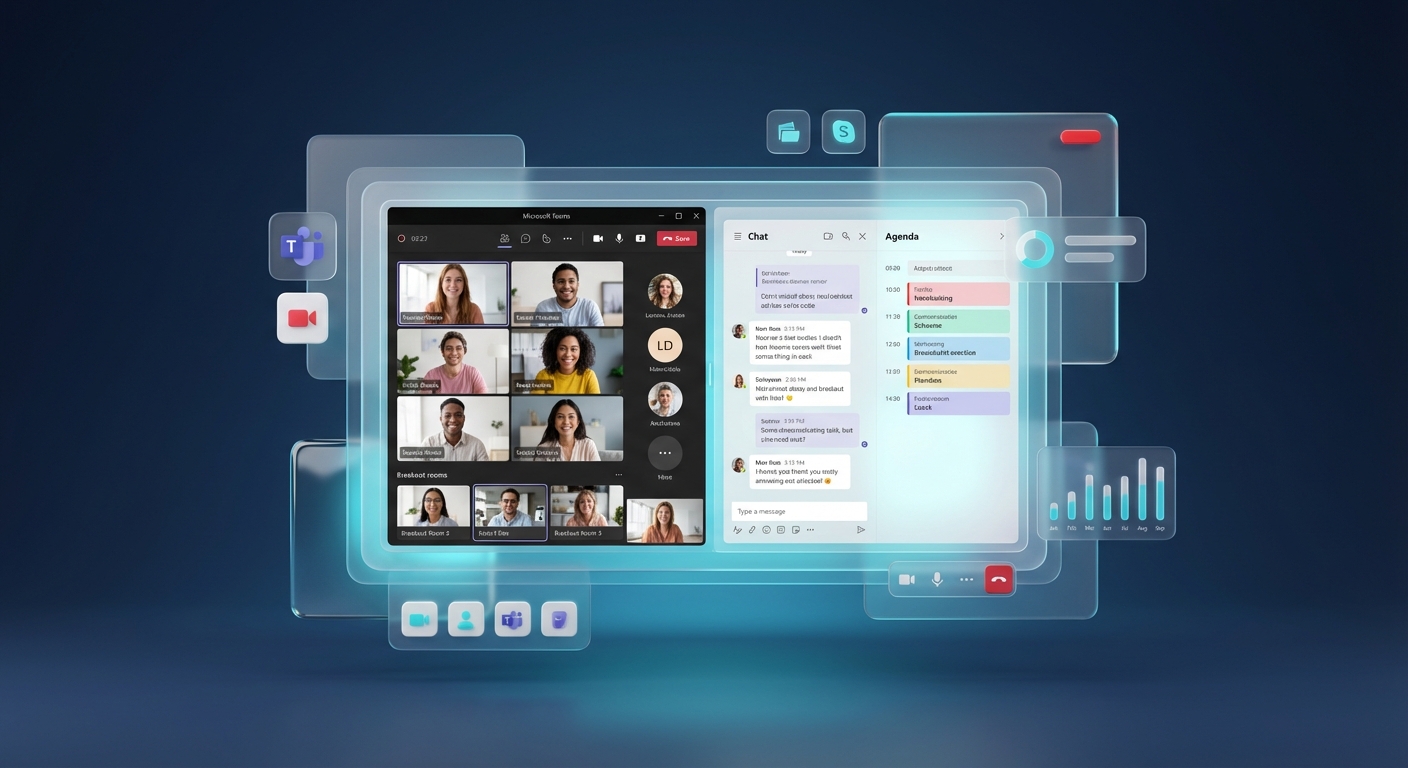
Microsoft Teams now has native breakout rooms. The meeting organiser can create them before or during a meeting, assign participants, open and close rooms, send announcements and appoint eligible presenters as room managers. You no longer need separate teams, private channels or simultaneous meeting links for an ordinary workshop.
Prerequisites and role boundary
Use Teams on desktop to create and manage rooms. Microsoft says you must be the meeting organiser or a presenter from the organiser's organisation who has been appointed as a breakout-room manager.
Only the organiser can pre-create rooms and pre-assign participants. Attendees can join from several clients, but Linux, web, mobile and PSTN participants cannot manage rooms.
Send the meeting invitation before trying to prepare rooms. The breakout-room option appears on the event after invitations have been sent.
Create rooms before the meeting
- Open Calendar in Teams.
- Select the scheduled meeting and choose View event.
- Select More options > Breakout rooms.
- Select Create rooms.
- Choose the number of rooms and add them.
- Select Assign participants.
- Choose automatic or manual assignment, then save.
Microsoft currently supports up to 50 rooms. Its Support page also states that pre-created rooms can be used for meetings with up to 300 invitees. Treat limits as volatile and check the current source before planning a large event.
Create rooms during the meeting
- In the meeting controls, select Rooms.
- Choose the number of rooms.
- Choose how participants should be assigned.
- Select Create rooms.
- Rename rooms and adjust assignments before opening them.
Microsoft notes that automatic assignment is not available later in the meeting after the initial room creation. If people arrive late, be ready to assign them manually.
Appoint a breakout-room manager
First invite the person and make them a presenter. In the room settings, turn on Assign presenters to manage rooms, choose the presenter and save.
A room manager can assign people, open and close rooms, send announcements and join rooms. Only one manager can control the rooms at a time. The meeting organiser remains responsible for the event.
Run the session cleanly
Before opening rooms:
- rename each room for its task;
- tell people how long they have and what they must bring back;
- assign a facilitator where the discussion needs one;
- keep a copy of the task in the main meeting chat;
- decide whether participants move automatically;
- prepare a fallback for callers or unsupported clients.
Use Make an announcement to send an update to every room. Set a time limit if a hard return time matters, but also give a spoken warning. Do not assume everybody notices an in-room notification.
Troubleshooting and recovery
Rooms is missing: confirm you are using desktop Teams, you are the organiser or assigned manager, and the invitation has been sent. Being a Teams administrator does not make you the organiser of another person's meeting.
A person cannot be pre-assigned: invite them directly and make sure the identity used for pre-assignment matches the account they use to join. Microsoft Teams Free users cannot be assigned to a breakout room.
A manager cannot take control: confirm they are an internal presenter and that another manager has not retained control.
Someone is stranded: close rooms to return participants to the main meeting, or reassign the person manually. Keep the main meeting link available outside the room workflow.
What this proves
A rehearsal proves that the named organisers, managers and test participants can use the configured rooms on their tested clients. It does not prove that every guest identity, phone participant or last-minute attendee will be assignable. Rehearse with the real role and account types.
For practical Teams meeting and policy guidance, join the SharePoint & Teams Admins Space.