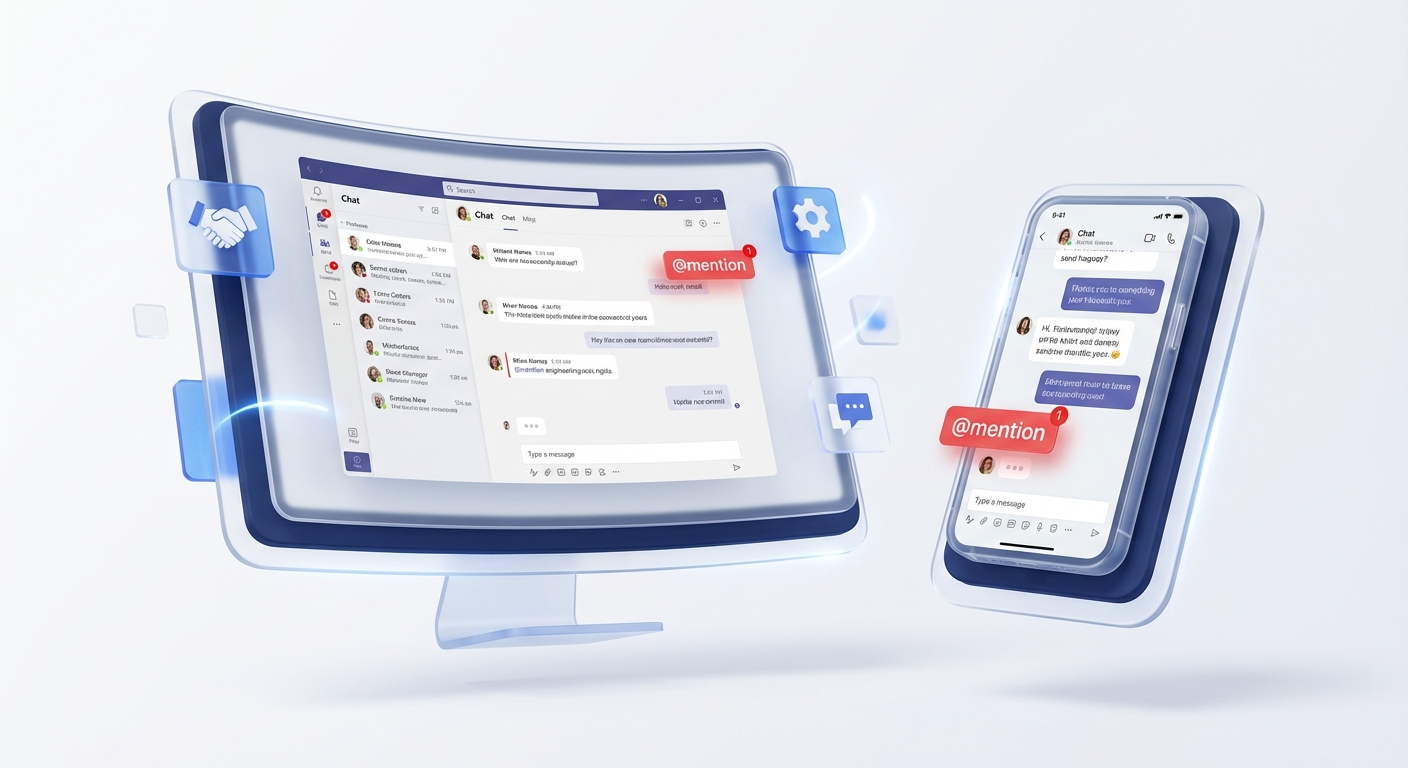
An @mention in Microsoft Teams links a name to a notification. Type @, continue with the person, tag, channel or team name, then select the correct suggestion before sending.
The selection matters. Plain text that happens to contain a name does not create a Teams mention.
Which mention should you use?
| What you need | Use |
|---|---|
| One person’s attention | @Person name |
| A defined subset of a team | @Tag name |
| Everyone in the current chat | @everyone |
| Everyone in a channel | @Channel name |
| Everyone in a team | @Team name |
Team and channel mentions can notify a large audience. Microsoft says a team owner must enable those options, so use a person or tag when only a few people need the message.
Mention one person on desktop, web or mobile
- Open the chat or channel conversation.
- Type
@followed by the person’s name. - Select the person from the suggestions.
- Finish the message and send it.
Teams highlights the mention. Selecting the resulting notification takes the recipient to that point in the conversation.
Mention a useful group with a tag
A Teams tag represents a subset of people in a team, such as @FirstAid or @OnCall. Custom tags may be created by team owners, or by members when the owner allows it. Shifts-based and administrator-managed automatic tags may also be available.
To use one, type @ and the tag name in a channel post, then select the tag. You can also start a new chat by typing a tag in the To field.
If the tag does not appear, check that:
- you are working in the right team or channel;
- the intended people are assigned to the tag;
- the owner permits members to create or use tags; and
- for a shared channel, the people are direct channel members where required.
Why can’t I mention a team or channel?
The most common cause is an owner setting, not a personal privacy preference.
A team owner can open Manage team > Settings > @mentions and control who may use team, channel and group mentions. An organisation’s Teams settings and messaging policies can also affect the options users see.
Other practical checks:
- Make sure the person has access to that chat or channel.
- Confirm a guest has joined the team, rather than assuming external access makes them a team member.
- Select the suggestion rather than merely typing the display name.
- Check for duplicate names before sending.
- Ask an owner whether a tag was renamed or removed.
Do not promise that a mention was read. It creates a notification subject to the recipient’s notification settings and access.
Use mentions without creating notification noise
Put the action in the message: who needs to do what, by when, and where the supporting file lives.
Use a channel mention for a genuine channel-wide event. Use a tag for an operational role. Use a direct mention for an individual decision. If no action is required, a normal post is often enough.
Keep your Teams setup understandable
If mentions, tags and channel settings have become hard to govern, join the SharePoint & Teams Admins Space for practical administration discussions.