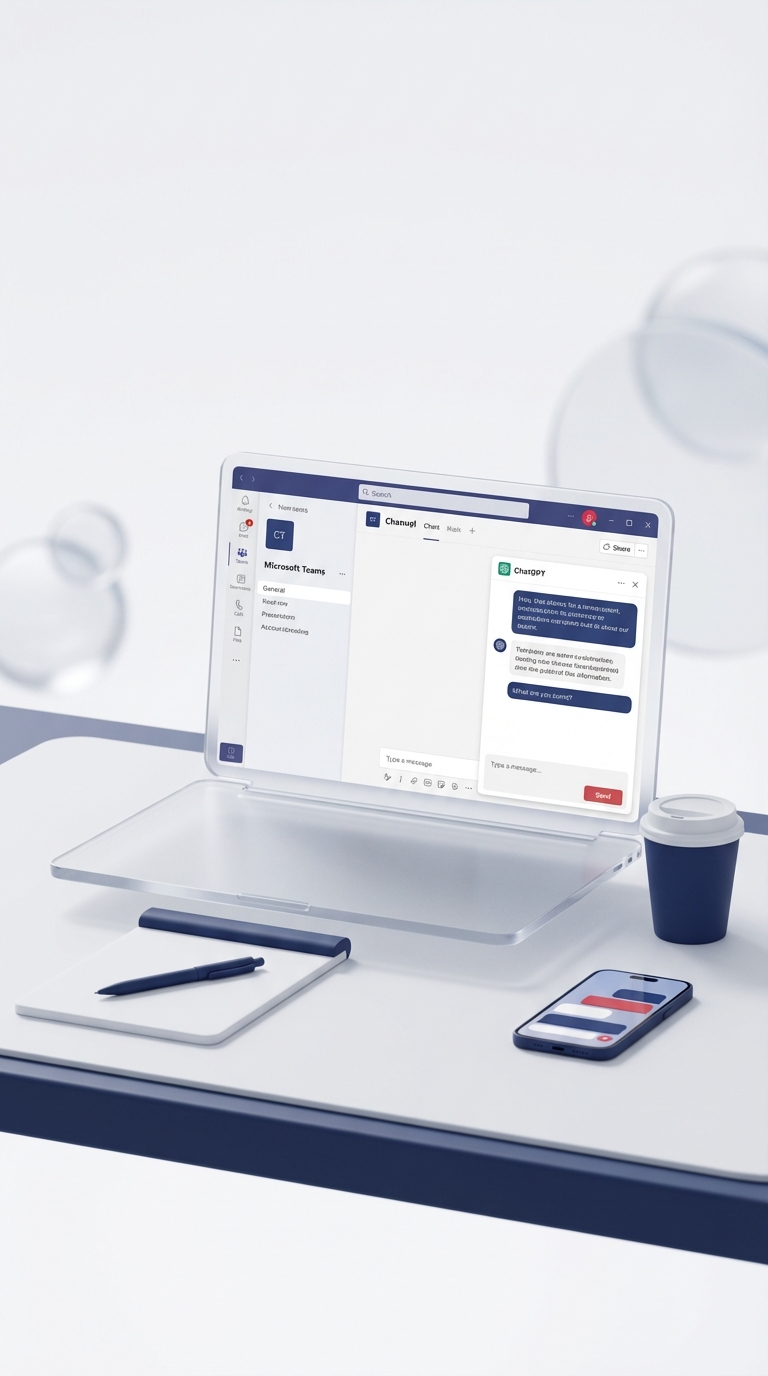
A Microsoft Teams channel cannot literally become ChatGPT. What you can build is an automation that watches selected channel messages, sends approved text to the OpenAI API, then posts the response back to Teams.
That distinction matters. The result is an integration owned by you, not a native Teams feature. You must govern the Teams identity, API key, message data, failure handling and AI output.
Verified on 24 August 2026 against Microsoft Learn, Make and OpenAI documentation. Make module names and screens can change, so confirm them in a test scenario before production use.
When this pattern is useful
Use it for a bounded shared task, such as drafting a summary from a message marked with a trigger word. Do not point it at every conversation in a busy channel.
A sensible first version should:
- Watch one dedicated channel.
- Respond only when a clear trigger is present, such as
@AI draft. - remove or mask data that the external model does not need.
- post a labelled draft, not an authoritative answer.
- log failures without copying sensitive message bodies into error logs.
Prerequisites and ownership
You need a Microsoft 365 account that can access the team and channel, permission to create the Make connection, a Make scenario, and an OpenAI API project with billing configured. A ChatGPT subscription is not an OpenAI API allowance.
Use a named service account or another documented ownership model rather than an employee's personal connection. If that person leaves or revokes consent, the scenario can stop.
Your Microsoft 365 administrator should review the consent granted to Make. A channel message is visible to channel members, so never treat the reply as private merely because it was generated for one person.
Build the scenario
1. Watch a narrow event
In Make, create a scenario with a Microsoft Teams module that watches messages in the chosen channel. Select the team and channel explicitly.
Add a filter immediately after the trigger. Check for your trigger phrase and ignore messages posted by the integration identity. That second check prevents the scenario from answering its own reply repeatedly.
2. Prepare the model input
Build a fixed instruction that explains the task, the expected format and the refusal boundary. Append only the relevant message text.
Do not send the complete channel history by default. More context means more disclosure, more tokens and more opportunity for a malicious message to influence the model.
3. Call the OpenAI API
Use Make's maintained OpenAI module where it supports your required operation, or an authenticated HTTP call configured with a secret stored in the connection. Never paste an API key into a Teams message, prompt template or shared document.
Select a current model from your OpenAI project rather than copying an old model name from a tutorial. Set a response length appropriate to the task and handle rate-limit, authentication and timeout errors.
4. Post a clearly labelled draft
Send the returned text to the same channel with wording such as AI-generated draft: check before using.
Include a correlation ID or link to the source message if the Teams module supports it. Do not impersonate the original author or automatically present the response as policy, legal advice or a customer commitment.
Security and privacy checks
The data crosses at least three systems: Microsoft 365, Make and OpenAI. Read the contractual and privacy terms for each one.
OpenAI states that API data is not used to train its models by default, but its platform documentation describes abuse-monitoring and application-state retention. The exact retention depends on the endpoint and your approved controls. Not used for training does not mean never stored.
Make is outside Power Platform, so Power Platform data policies do not govern this scenario. Control it through Microsoft consent, Make team roles, connection ownership, secret handling and a documented data classification decision.
Prove it before wider use
Test ordinary prompts, blank messages, long messages, attachments, hostile instructions, deleted messages, expired connections, API rate limits and Teams posting failures. Check that the scenario never loops and that one failed API call does not create repeated replies.
This design proves only that the integration works for the tested channel and cases. It does not prove that the answers are correct, that all company data is suitable for the service, or that the workflow meets your compliance duties.
For help designing the same workflow with explicit permissions, failures and handover, join the Power Automate Builders Space.