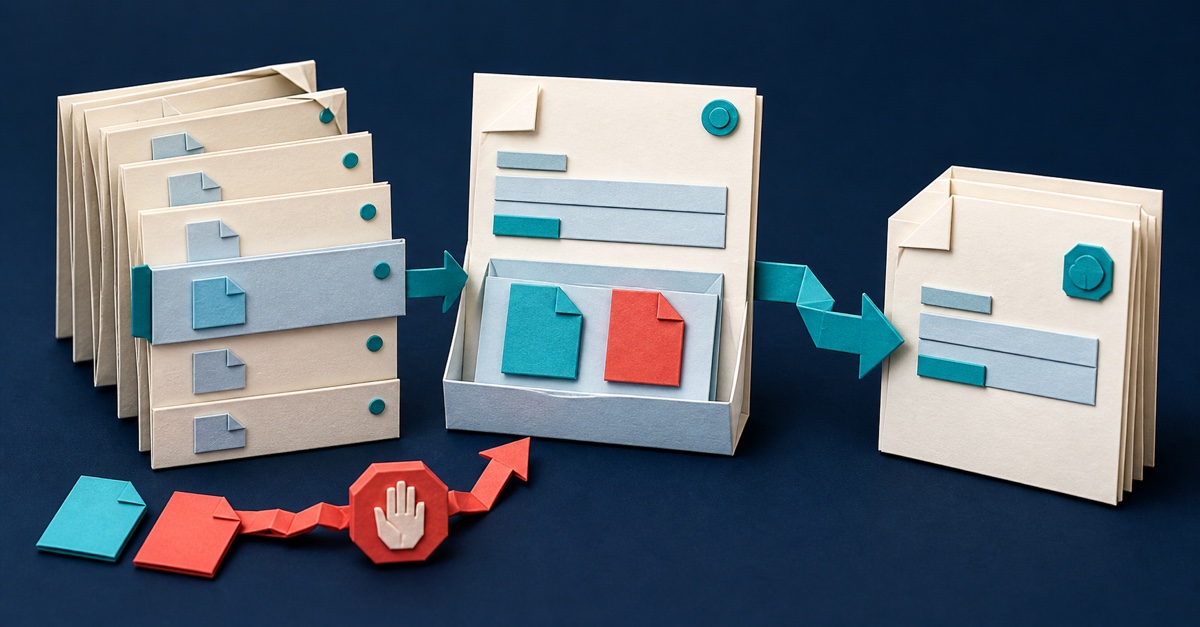
The supported way to add SharePoint list attachments from a gallery is to select the record in the gallery, open it in an edit form and use the form's Attachments data card. The standard attachment control only uploads and deletes files inside a form, and saves them when that form is submitted.
You cannot reliably patch an arbitrary gallery collection into SharePoint's attachment field with the standard control.
Prerequisites
- A SharePoint list with attachments enabled.
- A canvas app connected to that list.
- Users with permission to edit the selected list items.
- An edit form containing the Attachments field.
The user needs access to both the app and list. Hiding the edit button is not a security boundary.
Edit an existing gallery item
Assume:
- the data source is
Inspections; - the gallery is
galInspections; - the edit form is
frmInspection; - the edit screen is
scrInspectionEdit.
Set the gallery row or edit icon's OnSelect:
EditForm(frmInspection);
Navigate(scrInspectionEdit)
Set the form's properties:
DataSource = Inspections
Item = galInspections.Selected
In the form's field list, add Attachments. Do not copy the attachment control outside the form. Microsoft documents that upload and delete are disabled unless the control is inside a form.
Set the save button's OnSelect:
SubmitForm(frmInspection)
Set the form's OnSuccess:
Notify("Inspection saved", NotificationType.Success);
Back()
Set OnFailure:
Notify(
    Coalesce(frmInspection.Error, "The item and attachments could not be saved."),
    NotificationType.Error
)
Keep navigation in OnSuccess. If you navigate immediately after SubmitForm, a failed upload can leave the user believing the files were saved.
Create a new item with attachments
For a new button:
NewForm(frmInspection);
Navigate(scrInspectionEdit)
The attachment files and the other form fields are submitted together. The new SharePoint item does not have an ID until the submit succeeds, which is another reason not to invent a patch-first attachment formula.
If you need the created record afterwards, use frmInspection.LastSubmit inside OnSuccess.
Limits that affect the design
Microsoft documents these attachment-control boundaries:
- SharePoint lists and Dataverse tables are supported data sources.
- Collections and transformed tables are not supported as the attachment source.
- Upload and delete work only inside a form.
- Web browsers can select multiple files, but Power Apps Mobile adds one file at a time.
- Teams mobile has additional attachment restrictions.
The control also has MaxAttachments and MaxAttachmentSize properties. Those UI limits do not override SharePoint, tenant, browser or network limits.
When you need a different architecture
If each file needs its own metadata, approval state or retention policy, a document library is usually a better model than list attachments. Store the document in the library and relate it to the business record using an ID or lookup.
If you need drag-and-drop uploads from an arbitrary gallery, background transfer or custom progress handling, the standard control is not enough. That becomes a custom API, flow or component design with separate authentication, licensing, error recovery and security work.
Test before publishing
Test create, edit, delete and cancel with an ordinary user. Include a denied file type, an oversized file, mobile use if supported, a connection interruption and reopening the record to verify that the attachment really persisted.
For help choosing between list attachments and a document-library design, join the Power Apps Builders Space.