

You open Power Apps with what sounds like a straightforward idea: give people one place to see what they need to learn and show when they have done it.
Then the questions start. Who decides what they need to do? What counts as complete? What evidence should a manager be able to see? Who can change that evidence six months later?
AI makes it tempting to skip that conversation. You can ask for tables, screens and Power Fx and have something app-shaped on the page before anybody has agreed what the LMS is supposed to prove.
That is usually where the trouble starts.
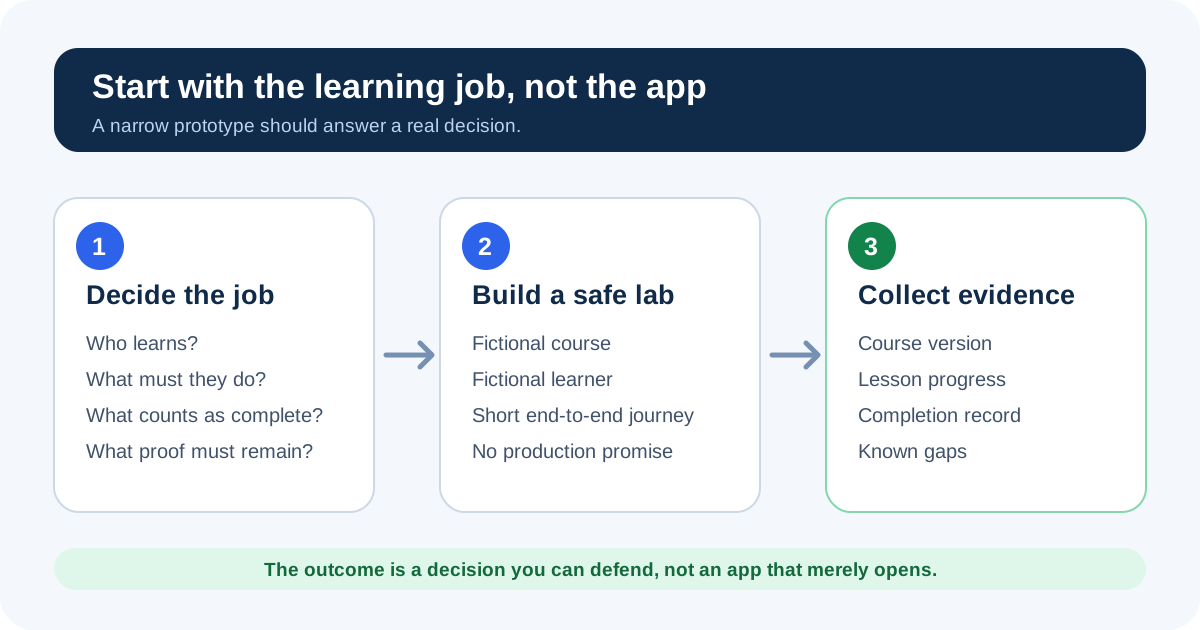
So start with the learning job, not the app. Decide who the first learner is, what they need to do, what counts as complete, what evidence must remain, and who will own the result.
Only then should you ask AI to help you build anything.
That may feel slow when Power Apps is open and a prompt box is waiting. It is faster than spending three days polishing a dashboard before noticing that nobody agreed what “complete” means.
The short answer
Write a one-page brief for a deliberately narrow, fictional LMS prototype. Give AI one controlled building job at a time. Check the generated work in Power Apps. Test the learner journey with non-sensitive data. Keep a written boundary between what the prototype demonstrates and what your organisation would still need before a pilot.
If you already know the requirements and are deciding whether Power Platform is the right route, go straight to Should You Build an LMS on Microsoft Power Platform?.
First decide which word you mean by LMS
People use “LMS” for several different things:
- a page where staff can find learning;
- a Teams-based learning hub;
- a way to assign internal training;
- a record of completion;
- a formal platform with standards, certification, commerce, reporting, support, and audit requirements.
Those are not the same build.
A prototype can help you test a learning journey and expose awkward questions. An operated LMS has to keep working for real people, protect their data, preserve the right evidence, survive staff changes, and meet the obligations your organisation has accepted.
If you need external learners, payments, SCORM or xAPI, proctoring, formal certification rules, complex regulatory reports, or vendor-backed service levels, put those requirements on the page now. Do not hide them under “phase two”.
Copy this prompt into AI to create your starting brief
Do not begin with a blank document. Copy the prompt below into ChatGPT, Copilot, Claude, or another AI assistant and let it interview you.
It should ask one question at a time, challenge woolly answers, and produce the brief when it has enough context. You answer the questions. The AI does the organising.
You are my AI build coach. Help me define a narrow, testable LMS
prototype before anybody starts creating tables, screens, formulas,
flows, or agents.

BACKGROUND

I am exploring whether Microsoft 365, Power Platform, and AI could
help me solve a learning-management problem. I may not yet know whether
I should buy an LMS, configure tools we already have, commission a
supported solution, or build a small Power Apps prototype.

Assume the first prototype uses fictional people, content, dates, and
evidence. Do not assume it is suitable for real learners or production
use.

GOAL

Help me produce a one-page LMS Prototype Brief for one thin, end-to-end
journey that I can explain, test, and review with another person.

PURPOSE

The brief must help me decide what the first prototype should prove,
what it must not claim, and what we would still need before a pilot.
Its purpose is not to make the idea sound impressive.

HOW TO COACH ME

1. Ask me one question at a time. Do not give me a blank questionnaire
   or ask me to fill in a template.
2. Begin with the problem I am trying to solve, not the app I think I
   want.
3. Use plain English. Explain any Microsoft or LMS terminology you
   introduce.
4. Do not invent missing facts. Mark them UNKNOWN and ask a follow-up
   question.
5. Challenge vague words such as complete, secure, compliant,
   accessible, ready, simple, and everyone.
6. Separate facts, my decisions, your suggestions, assumptions, and
   unresolved questions.
7. Keep the first scope deliberately small unless I provide a strong
   reason not to.
8. Do not generate code or start designing screens during this
   interview.
9. Do not assume Power Platform is the right route. Point out
   requirements that may favour a packaged LMS or a supported
   commissioned build.
10. Keep real personal, employee, customer, health, payment, and
    assessment data out of the prototype.

QUESTIONS YOU MUST COVER

Ask enough follow-up questions to understand:

- what is happening now and why it has become a problem;
- who the first learner is and who else needs to take part;
- the observable job each person needs to do;
- what content or activity is being assigned;
- exactly what complete means;
- what saved evidence should support that claim;
- who may create, view, change, approve, or delete each important
  record;
- what Microsoft 365 and Power Platform environment already exists;
- what permissions, licences, connectors, policies, and skills are
  available;
- how the journey could fail, including empty, duplicate, late, and
  incorrect records;
- who would own the app, data, connections, releases, support, and
  recovery;
- whether we need external learners, payments, SCORM or xAPI,
  certificates, proctoring, formal reporting, or service commitments;
- the deadline, budget, people, and support available;
- what the first prototype must exclude;
- what evidence would be enough to decide the next step.

FINAL OUTPUT

When you have enough information, write an LMS Prototype Brief
containing:

1. Background and current problem
2. Goal and purpose
3. Named users and their observable jobs
4. The single thin journey to prototype
5. The records and evidence the journey needs
6. The proposed completion rule
7. Permission and ownership questions
8. Failure cases to test
9. Acceptance checks
10. Explicit exclusions and proof boundary
11. Assumptions and UNKNOWN items
12. Your recommendation: buy, configure, commission, prototype, or
    investigate further
13. The first safe action to take next, with a reason

End by asking me to correct the brief before any building begins.

Start now with one question: What is happening today that makes you
think you need an LMS?
The result should be a decision brief you can hand to a colleague or use in a fresh AI conversation. It should not be a pile of generated screens.
If the completion rule is still fuzzy after the interview, read Your Power Apps LMS Says 100% Complete. What Did They Actually Finish? before building the data model.
Check the environment before AI starts building
Microsoft’s current Plans in Power Apps can turn a natural-language business case into proposed Power Platform components, including Dataverse tables, apps, flows, sites, and agents.
Plans requires an eligible environment with Dataverse and appropriate permissions. Microsoft says the feature is generally available and enabled by default, but availability still depends on the environment and locale.
Ask your Power Platform administrator:
- Which environment may I use?
- Does it have an approved Dataverse database?
- May this prototype use the planned learner data?
- Which connectors and AI features are permitted?
- Who should own connections and automations?
- How would a solution move into test?
- What proof would be required before another person uses it?
If those answers are not ready, stay with fictional names, dates, courses, and evidence.
Where AI can genuinely help you build the LMS
There is not one thing called “building with AI”. There is a range from asking AI to coach your thinking to letting an AI coding tool change the app.
Choose the role deliberately. Do not give AI the largest job merely because the prompt box allows it.
1. Use AI as a build coach
At the cautious end, AI does not touch the environment. It asks questions, turns a large outcome into smaller decisions, checks what evidence you have saved, and helps you work out what to do next.
This is the model used by our paid Build a Microsoft 365 LMS with AI Board. The AI coaches you through preparing, building, testing, moving, and documenting the lab. You make the changes and approve each important decision.
That is slower than handing over one enormous prompt. It is much easier to inspect.
2. Use AI as a requirements and design partner
AI is useful when the LMS idea is still a tangle of people, screens, data, and expectations.
Ask it to help you produce:
- named user roles;
- one observable job for each role;
- the records the app might need;
- the states each record can enter;
- permission questions;
- failure cases;
- acceptance checks;
- explicit exclusions.
Plans in Power Apps can turn a natural-language business case into proposed Dataverse tables, apps, flows, sites, and agents. Treat that output as a proposal to review, not an approved architecture.
3. Use AI for a vibe-coded first draft
Vibe coding is the loose end of the spectrum. You describe the result, let AI generate a substantial first attempt, then steer by looking at what appears and asking for changes.
For a fictional LMS lab, that can be a perfectly reasonable way to make an idea concrete. AI can sketch navigation, create a rough screen, suggest Power Fx, add fictional records, and give you something visible to discuss.
The danger is that an app can look convincing while the permissions, record relationships, completion rule, or failure handling are wrong.
Vibe coding is a useful way to get an idea out of your head. It is not a release process.
4. Use browser-assisted AI coding
An AI assistant working alongside Power Apps Studio can help inspect the visible app, read maker diagnostics, compare a before-and-after screen, and make a bounded change while you watch the result.
Microsoft also documents a more structured preview workflow for external AI code generation tools. The tool connects to a live Power Apps Studio coauthoring session through the Canvas authoring MCP server, generates and validates .pa.yaml files, and syncs the changes back to Studio.
That is far more useful than pasting disconnected formulas into a chat. It also needs a tighter safety routine because the assistant is no longer merely offering advice.
If the difference between an AI chat and an agent that can open files, use a browser, and finish a task still feels fuzzy, AI for Work explains the shift in plain English. It shows you how to brief, supervise, and check the work before you let an agent near anything important.
Keep the change small. Save a known working state. Ask what changed. Preview the result in Studio. Test the data behaviour, not only the screen. Microsoft still makes the maker responsible for reviewing and validating the generated work, and the documented workflow is currently preview.
5. Use AI as a test and fault-finding partner
Do not wait for the app to fail before involving AI.
Working from a safe copy, you can export the canvas app to your laptop and let an AI assistant read the actual source files. Ask it to map every screen and save, identify risky paths, and draft a one-page test plan for you to correct.
AI can then help you:
- create fictional records for the happy path, empty states, bad inputs, duplicate actions, and failed saves;
- write a focused manual checklist for you and one colleague;
- decide what to watch in the live monitor while each test runs;
- write a repeatable browser test with Playwright and explain what a failure means;
- turn the results into a pre-share routine you can run again after the app changes.
That is the method taught in Test Your Power App Before You Share It. Its seven-part workflow moves from AI-assisted source review and test planning to a manual check, a browser test, and a repeatable pre-share hour.
A green browser test is evidence that a named journey worked under the conditions you tested. It is not proof that permissions are correct, fifty people can use the app together, every phone layout works, or the LMS is ready for production.
It can also help you work backwards from a failure. In our lab, the app opened but the Course read failed. The first guess was missing fixture data. The actual diagnostic pointed to a missing Dataverse security role.
That did not make AI the final authority. It made the right evidence easier to find. The full example is in Our Power App Said “Course Not Found”. The Dataverse Record Was There.
6. Use AI to explain and document the build
Ask AI to explain a Power Fx formula in plain English, trace which record a button should create, draft a change log, or turn your notes into handover questions.
Then check the explanation against the app. Use AI to Explain a Power Apps Formula Without Trusting It Blindly gives you a practical review routine.
A final distinction matters here. The Board uses AI to coach the person building the LMS. Adding an AI coach for learners inside the finished LMS would be a separate feature, with its own approved knowledge, permissions, privacy decisions, escalation route, and tests.
Keep every AI job inspectable
Good AI-assisted requests are small enough to review:
- propose a data model from the written evidence journey;
- create one responsive screen against a named acceptance check;
- explain a Power Fx formula in plain English;
- add a visible empty state and error state;
- suggest fictional test records;
- list assumptions made by the generated change;
- compare the changed controls with the previous version.
Poor requests hand over judgement:
- “make it secure”;
- “make it compliant”;
- “finish the LMS”;
- “decide who should see learner records”;
- “tell me when it is production ready”.
AI can help you make and inspect a change. It cannot become the accountable owner of that decision.
Build one thin journey
For a first lab, one complete path is worth more than ten disconnected screens.
A useful thin journey might be:
- create one published course version;
- add two required lessons;
- enrol one fictional learner;
- complete each lesson;
- calculate the course rule;
- create a separate evidence record;
- display exactly what the evidence says;
- record what remains unproved.
This is enough to expose data relationships, permissions, failure states, layout problems, and release questions.
It is also small enough that you can explain it to another person without reopening the AI conversation.
Treat sharing as a release decision
Microsoft’s canvas-app sharing guidance is explicit: sharing the app does not automatically provide access to its underlying data. Dependent flows, connections, gateways, and other resources can have their own access requirements too.
Before a test user gets a link, record:
- the saved and published app version;
- the user role being tested;
- the Dataverse security role assigned;
- the expected result for the main journey;
- the empty and failure paths checked;
- the person who approved the test;
- the person who can reverse it.
Then ask the uncomfortable question: Your Power App Works for You. Will It Work for a Colleague?.
What should you decide next?
Now compare the routes without falling in love with the prototype.
You might buy a packaged LMS, configure tools already present in Microsoft 365, commission a supported build, or use Power Platform to answer one narrow question.
Should You Build an LMS on Microsoft Power Platform? walks through those four choices.
If you want to see the worked prototype before making that decision, read Inside the Learning Board: Build a Microsoft 365 LMS with AI.
If you have already chosen the narrow prototype route and want the guided build-and-prove sequence, use the paid Build a Microsoft 365 LMS with AI Board. It uses a fictional, non-production lab so you can learn without pretending the result is ready for real learners.
Sources
- Microsoft Learn: Overview of plans in Power Apps
- Microsoft Learn: Create and edit canvas apps with AI code generation tools, preview
- Microsoft Learn: Share a canvas app with your organisation
- Microsoft Learn: Role-based security roles for Dataverse
- Microsoft Learn: ALM for a new Power Platform project