

It usually happens just as the app starts to feel finished.
The progress bar reaches 100%. Every lesson row is green. Then a manager asks, “Can you send me everyone who completed SAFE_SHIFT_V1?”
You hover over Export and realise the awkward bit.
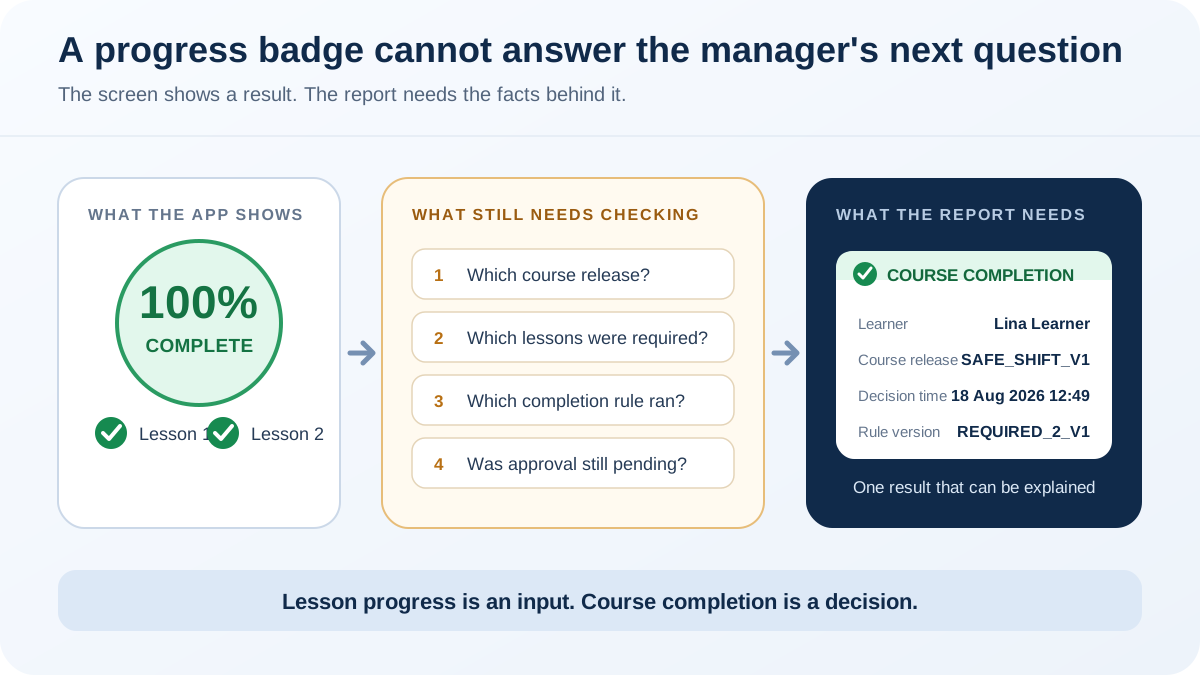
What does 100% actually mean?
Perhaps the learner opened every page. Perhaps they pressed two Mark complete buttons. Perhaps they finished every required lesson but the manager approval is still waiting. Your screen has compressed those different facts into the same reassuring number.
That might be harmless in a fictional prototype. It becomes a problem when somebody uses the report to make a real decision.
This guide shows you how to separate lesson progress from course completion in a Power Apps LMS. You will leave with a five-record Dataverse model, a plain-English completion rule, and a short set of tests that tell you whether the result can be trusted.
The problem hiding behind the green tick
A lesson button can make one narrow statement:
This learner completed this lesson at this time.
It cannot tell you, on its own, whether the learner completed the course.
Course completion depends on the rules around that lesson. You still need to know:
- which course release the learner was assigned;
- which lessons were required in that release;
- whether every required activity was completed;
- whether a score, upload or approval was also needed;
- which rule was used when the completion decision was made.
Three courses can all display 100% while meaning different things:
| What happened | What 100% might mean |
|---|---|
| The learner opened five pages | All pages were visited |
| The learner completed four required lessons and skipped one optional lesson | All required lessons were completed |
| The learner finished every lesson but the manager has not approved the submitted work | Lesson activity is complete, but the course is still awaiting a decision |
The percentage is not necessarily wrong. It is simply too small to carry the whole meaning.
Why this gets painful later
When the app is new, everybody remembers what the green tick was supposed to mean.
Six months later, the person who wrote the formula is on holiday, the course owner has added another lesson, and somebody wants an answer for a learner who completed the old version.
That is where loose completion logic starts costing time.
The course changes underneath the learner
If your report checks the current list of lessons, yesterday's completion can appear to change when a course owner edits the course.
The learner needs to remain tied to the release they were assigned. SAFE_SHIFT_V1 and SAFE_SHIFT_V2 may share a title, but they are not the same set of requirements.
A learner is blamed for a system failure
“Not complete” should mean the completion rule ran and the learner did not meet it.
It should not also mean the app could not read Dataverse, a write failed, or an approval record was unavailable. Those are system states, not learner outcomes.
The same completion is written twice
Buttons get pressed twice. Connections retry. A flow and the app can reach the same decision at almost the same time.
If your design has no way to recognise an existing result, you can end up with duplicate completion rows, certificates or notifications.
The report becomes a debate
A manager sees “Completed”. The maker sees two lesson rows. The course owner remembers an approval step. Nobody can tell which rule was applied or which version was assigned.
The fix is not a more impressive dashboard.
The fix is to store the decision properly.
Start with the sentence you want the report to support
Before creating another table or formula, write the completion statement in ordinary English.
For our fictional prototype, we used:
Lina Learner completed both lessons marked as required in course release SAFE_SHIFT_V1. The app then created one separate course-completion record that preserved that result.
That sentence gives the build a boundary.
It does not say that Lina is a verified employee, that a manager observed the work, that the content meets a safety standard, or that the record satisfies a legal requirement. If your organisation needs any of those claims, put the required checks into the rule and collect the evidence to support them.
Do not let the interface make a stronger promise than the records underneath it.
The five records I would put underneath the app
You can rename these tables to suit your organisation. Keep the jobs separate even if you combine some of them in a very small prototype.
| Record | The question it answers | Minimum useful facts |
|---|---|---|
| Course release | What version was assigned? | Stable release ID, title snapshot, status and effective date |
| Lesson requirement | What counted for that release? | Course release, lesson, required or optional, and sequence |
| Enrolment | Who was expected to complete it? | Learner, course release, assigned date and current status |
| Lesson progress | What did the learner do? | Enrolment, lesson, progress state and event time |
| Course completion | What decision did the system make? | Enrolment, release snapshot, rule version, decision time, approval state and trace back to the supporting records |
Here is why each one earns its place.
1. Course release
Treat the course title as a label, not an identity.
The release is the stable version the learner was actually given. If the title or lesson list changes next month, the historical record should still point to SAFE_SHIFT_V1 and the requirements that belonged to it.
For a first build, record a release ID, title snapshot, publication state, effective date and the lessons attached to that release.
2. Lesson requirement
Do not assume every lesson is required simply because it appears in the course.
Store the relationship between the release and the lesson, including whether it is required. That gives the completion check a real list to work from and lets you add optional material without breaking the result.
If approvals, scores or uploads matter, this is also where you start defining what each requirement expects.
3. Enrolment
The enrolment connects one learner to one course release.
That sounds obvious, but it prevents two common shortcuts: inferring enrolment because somebody can browse a course, and calculating completion against whichever release happens to be current.
Keep the assigned release on the enrolment. Do not silently move existing learners to a new release because somebody edited the course.
4. Lesson progress
Each lesson-progress row should describe one learner's state for one lesson within the enrolment.
At minimum, store the lesson, status and event time. If attempts, corrections or reassessment matter, decide whether you need an event history rather than repeatedly overwriting one row.
The important boundary is simple: a lesson-progress row remains a lesson fact.
5. Course completion
This is the result the manager's report needs.
Create it only after the course-level rule has passed. Preserve enough context to explain the decision later: the enrolment, the release, the rule version, the number of required lessons, the number completed, the decision time and any approval state.
Also decide how the system will recognise that the completion already exists. Running the check twice should not create two results.
Wire the completion decision in this order
Do not make the Mark lesson complete button responsible for everything.
Let that action write the lesson-progress fact. Then run a separate course-level check.
For SAFE_SHIFT_V1, the check can be written in plain English before you translate it into Power Fx, a cloud flow or another controlled operation:
- Load the learner's enrolment and assigned course release.
- Load the lessons marked as required for that release.
- Find completed progress for the same enrolment and those required lessons.
- Check any additional rule, such as an approval or pass score.
- If every condition passes, create or update one course-completion record.
- If a condition does not pass, return the specific missing requirement.
- If the check itself fails, show an error instead of calling the learner incomplete.
For a small prototype, this logic may live in the canvas app while you prove the journey. If the result controls access, expires, triggers other systems, or can be written from several places, stop and decide whether the rule needs to run somewhere more central.
The platform choice comes after the business rule is clear.
Build the records before you polish the screen
If I were standing beside you in Power Apps, I would test this with one learner and two lessons before touching the progress animation.
Use fictional data and work through this sequence:
- Create SAFE_SHIFT_V1 with two required lesson relationships.
- Enrol Lina against SAFE_SHIFT_V1.
- Complete the first lesson and confirm that no course-completion record exists.
- Complete the second lesson and confirm that exactly one course-completion record exists.
- Run the completion check again and confirm that there is still only one record.
- Add an optional lesson and confirm the written rule still produces the intended result.
- Create SAFE_SHIFT_V2 and confirm Lina's existing completion remains attached to V1.
- Force a failed read or write and confirm the app shows a system error, not an incomplete learner.
Only after those records behave should the progress bar summarise them.
That order saves you from polishing a screen that is confidently displaying the wrong answer.
What the learner and manager should see
The learner usually needs a simple answer:
- what is complete;
- what is still required;
- whether something is awaiting review;
- whether their last action was saved.
The manager or course owner needs a little more:
- learner;
- assigned course release;
- required lesson result;
- completion decision and time;
- approval state, if used;
- a record that can be followed back to the supporting facts.
In our fictional Power Apps prototype, the evidence screen shows two completed lesson records and a separate whole-course record for SAFE_SHIFT_V1.
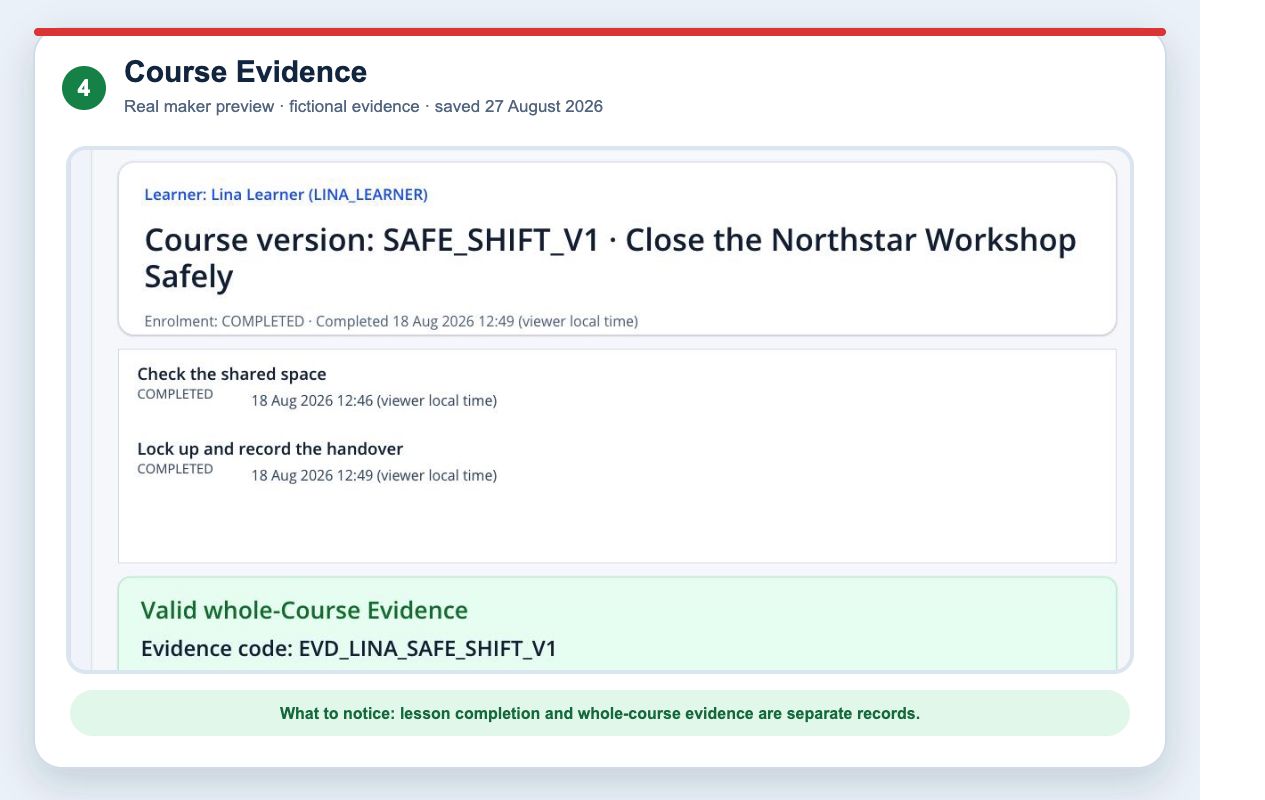
Real maker-preview evidence from our fictional prototype, saved on 27 August 2026. It is not a production, customer or compliance claim.
The screen is useful because it lets somebody inspect the relationship. It does not ask them to trust one celebratory badge.
Give the awkward states proper names
Do not squeeze every non-success result into Incomplete.
Your app may need to distinguish:
| State | What it means | What the person needs to hear |
|---|---|---|
| Not started | No required progress has been recorded | Start the first required lesson |
| In progress | Some requirements are complete | Show what remains |
| Awaiting approval | Learner activity is complete but a decision is pending | Name the approver or next step |
| Completed | The written course rule passed | Show the release and completion time |
| Check failed | The app could not evaluate the rule | Retry safely or contact the owner |
| Corrected or withdrawn | A previous result changed under a controlled process | Show the current state and retain the reason |
Those labels remove a surprising amount of confusion from support conversations.
Test the stored result, not only the green screen
The smallest useful test set is:
| Test | Expected stored result |
|---|---|
| Zero of two required lessons complete | No course-completion record |
| One of two required lessons complete | No course-completion record |
| Two of two required lessons complete | One course-completion record |
| Required lessons complete, optional lesson incomplete | Result follows the written rule |
| Completion check runs twice | Still one course-completion record |
| New course release created later | Existing completion still points to the original release |
| Approval required but pending | No final completion until the approval rule passes |
| Dataverse write fails | Honest error, with no false success message |
Microsoft deprecated Power Apps Test Engine in April 2026 and now points makers towards the Power Platform Playwright samples for test automation. The current samples support canvas apps and use the control names from Power Apps Studio to locate elements in the running app.
Use Playwright for repeatable journeys such as completing both lessons, refreshing the app and checking the visible result. Then inspect the Dataverse rows as well. A green screen is not proof that exactly one completion record was written.
Keep a short manual check too. Automation can repeat the path you described; a real person can still notice a confusing instruction, an unexpected permission boundary or a result the test never asked about.
Auditing helps you investigate. It does not invent the rule
Dataverse auditing can record configured changes and help an authorised person answer questions such as who changed a record, when it changed, and which values changed.
It has to be configured at environment, table and column level. Audit logs consume log storage, and retention needs an explicit decision.
That makes auditing useful when somebody challenges or corrects a result.
It still cannot tell you that your completion rule was sensible. If a bad formula writes Completed, the audit can faithfully record the bad write.
You need both a clear completion rule and an appropriate record of changes.
Where AI can help without making the decision for you
AI is useful here when you give it bounded work.
Ask it to:
- turn your written completion rule into test cases;
- suggest missing states and edge cases;
- explain a Power Fx expression in ordinary English;
- compare the intended fields with the records your app actually writes;
- draft questions for the course owner about approvals, corrections and expiry.
Do not ask it to decide what “complete” should mean for your organisation and then quietly ship the answer.
If you are working out which parts of your job are sensible places for AI assistance, the AI for Work guide gives you a broader way to make that decision.
What our prototype proves, and what it does not
The saved maker preview shows:
- one fictional learner;
- course release SAFE_SHIFT_V1;
- two required lessons;
- two completed lesson records with times;
- one separate whole-course evidence record;
- evidence code EVD_LINA_SAFE_SHIFT_V1.
That is evidence that the narrow prototype journey worked in the maker preview we observed.
It is not evidence of production identity, manager approval, audit configuration, retention, accessibility, second-environment deployment, support ownership or regulatory suitability.
For the complete boundary and the rest of the worked build, read Inside the Learning Board: Build a Microsoft 365 LMS with AI.
If you are still deciding whether Power Platform is the right route, start with Should You Build an LMS on Microsoft Power Platform?.
If you are designing the screens around these records, use How to Architect an LMS Interface in Power Apps.
When you want to build the whole fictional journey with AI coaching, the paid Build a Microsoft 365 LMS with AI Board takes you from the first environment check through the prototype, testing, second-environment verification and handover.
It is a guided learning Board, not an installed production LMS. Your organisation still owns the definition of completion and the decision to use it.