

We pressed Refresh in our small LMS prototype. Power Apps came back with this:
The supplied Course was not found. Check the unique Course version code, then refresh.
That sounded like a missing-record problem. So we started looking for a record that was already there.
The message was ours. The mistake was ours too.
The app could open, but the signed-in account could not read the relevant Dataverse table in that environment. The maker diagnostic named the missing privilege: prvReadlmslab_Courses.
Once the Dataverse role was assigned, the same fictional record loaded.
This is the story of how we separated a genuinely missing row from a failed read, then turned the diagnosis into a check you can use on any canvas app.
First, there is no standard Dataverse Course table
This needs saying plainly because our original wording made it sound otherwise.
Dataverse includes standard tables and lets app makers create custom tables for their own business data. Our LMS Build Lab uses a custom table whose display name is Course.
We created it for the fictional learning workflow in this prototype. It is not an out-of-the-box Power Apps or Dataverse table. You will not find it waiting in a new environment.
The particular row we were trying to load was also fictional:
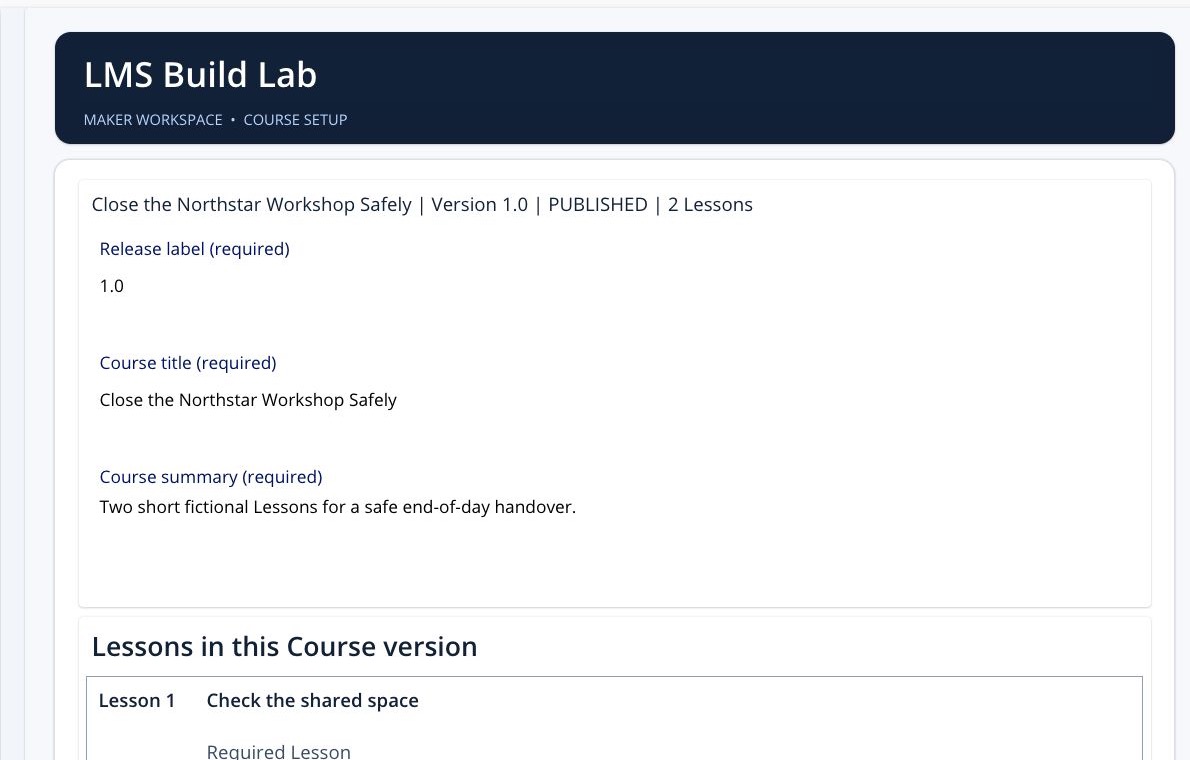
- title: Close the Northstar Workshop Safely;
- version code: SAFE_SHIFT_V1;
- release: 1.0.
If your app handles inspections, approvals, assets, requests, or projects, substitute your own custom table name. The useful part of this article is the access pattern, not our LMS data model.
The screen told us the wrong story
Our first error handling treated two very different results as though they meant the same thing:
- The query ran successfully and returned no matching row.
- The query failed before the app could establish whether a matching row existed.
Both paths ended with “Course not found”.
That is a nasty little bug because the message sounds confident. A maker may change the lookup, duplicate the data, or create another row when the real problem sits in access, the connection, or the environment.
In our case, the first useful clue was not on the learner screen. It was in the maker diagnostic held by the app. That diagnostic exposed the Dataverse privilege failure.
Only after the access problem was corrected could we prove that the row existed and the query worked.
What actually happened in our lab
Here is the sequence without the tidy hindsight:
- The canvas app opened in Power Apps Studio.
- The custom
Courselookup failed. - The app displayed a missing-record message.
- The runtime diagnostic showed that the account lacked
prvReadlmslab_Courses. - The Power Platform admin view showed that the account had no Dataverse security role in that environment.
- Mark assigned the account the System Administrator role for the maker session.
- The same lookup loaded the existing fictional row.
The corrected screen showed the fixture we had been trying to reach:
That is proof of one diagnosis in one environment.
It is not a rule that every “not found” message means permissions. A wrong identifier, missing row, broken connection, bad formula, different environment, record-scope restriction, or service problem can produce a similar symptom.
The point is to stop guessing and separate the checks.
Opening the app and reading its data are different checks
Microsoft’s current sharing guidance is explicit about this. Giving somebody access to a canvas app does not automatically give them access to the data sources and other resources the app depends on.
Dataverse then adds its own security path inside the environment.
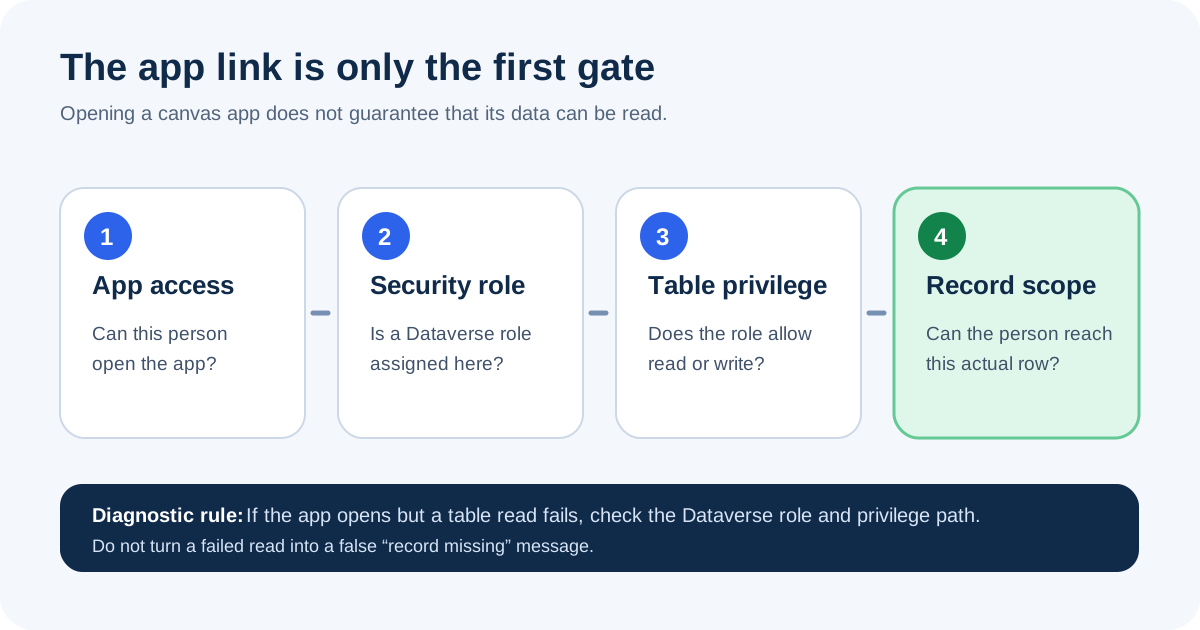
Think of the read as four gates.
Gate 1: Can this person open the intended app?
For a colleague, check that the intended version has been saved, published, and shared with the right person or security group.
For a maker working in Studio, simply opening the editor proves even less. It confirms that the maker can reach the app authoring surface.
Neither result proves that a table query will succeed.
Gate 2: Does this person have a Dataverse security role here?
Dataverse security roles are assigned within a particular environment.
This was the trap in our case. An account can have wider tenant or platform responsibilities and still lack Dataverse data access in one environment.
Microsoft states that tenant-level roles such as Power Platform administrator and Dynamics 365 administrator do not automatically grant Dataverse data access. The account also needs an appropriate Dataverse security role in that environment.
Gate 3: Does that role allow this operation on this table?
A role is a collection of privileges. The formula might need to read a row, create one, update one, or link two rows.
Ask four concrete questions:
- Which table did the formula call?
- Which operation did it attempt?
- Does the assigned role contain that privilege?
- At what access level?
In our incident, Dataverse told us the missing operation and table through prvReadlmslab_Courses. That was far more useful than the friendly screen message.
Gate 4: Can this person reach this particular row?
Having Read on a table does not always mean having Read on every row.
Effective Dataverse access can depend on the privilege level, row ownership, business unit, team membership, and explicit sharing. This is why a highly privileged maker account can make an app look healthy while a normal user still sees nothing.
Passing the first three gates does not remove the fourth.
A debugging order that avoids random fixes
Use this sequence when a canvas app opens but data appears to be missing.
1. Capture the failure before changing anything
Record the screen, control or formula, signed-in identity, environment, data source, visible message, and time.
Keep private business data and credentials out of screenshots and support notes.
2. Find out whether the query returned nothing or failed
This is the key branch.
An empty result means the operation completed but found no accessible match. An error means the operation did not complete normally. Do not send both through the same empty-state message.
Read the maker diagnostic, connection error, or monitored request rather than relying only on the friendly screen copy.
3. Confirm the exact environment and connection
Check where the app is running and which Dataverse connection it uses.
A perfect role in the wrong environment will not help. Nor will a role change repair a broken connection.
4. Confirm the table and operation
Trace the formula that failed.
Write down the custom or standard table name and whether the app was trying to Read, Create, Write, Delete, Append, Append To, Assign, or Share.
5. Check the user’s Dataverse role in that environment
Do not infer this from a Microsoft 365 title, a tenant admin role, or the fact that the app opens.
Inspect the role assignments for the actual signed-in identity in the actual Dataverse environment.
6. Check privilege level and row scope
If the role includes the operation, check whether it applies at user, business-unit, parent-child business-unit, or organisation level.
Then check ownership, team membership, and any explicit sharing that affects the row.
7. Prove the diagnosis with one controlled change
Change one thing, then repeat the same query against the same fictional identifier.
In our case, the role assignment changed and SAFE_SHIFT_V1 loaded. That tied the result to the access path far more convincingly than changing the data and the role at the same time.
8. Retest with the intended user role
An administrator proving that the row exists is a diagnostic step. It is not the release test.
Create or assign the minimum role needed for the real job, then test an allowed row and a deliberately denied row with a representative account.
Fix the message as well as the permission
If we had only assigned the role, the same misleading message would have survived for the next failure.
The app needs separate states for separate conditions:
| State | What it means | Useful user message |
|---|---|---|
| Loading | The read has not finished | Checking the assigned record… |
| Empty | The read succeeded but no accessible match exists | No assigned record was found for this person. |
| Failed | The read did not complete normally | We could not read the assigned record. Try again or contact the app owner. |
| Ready | The read succeeded and returned a row | Show the record and the next action. |
The learner does not need a raw connector response or a table privilege name.
The app owner does need enough internal detail to identify the operation, environment, time, and failing table. Those are two different audiences, so give them two different levels of detail.
System Administrator was a diagnostic step, not our role design
We used System Administrator to recover the maker session and establish whether the fixture could load.
That is far too broad for an ordinary app user.
Microsoft’s guidance recommends the minimum required access. For a real application, start with the job the person must perform, then grant only the necessary table operations and row scope.
Broad administrator access can:
- expose unrelated records;
- allow changes the person does not need;
- hide row-scope defects during testing;
- make the eventual least-privilege repair harder;
- turn one debugging shortcut into an environment-wide risk.
Prove the data path with an accountable administrator if you must. Then remove the shortcut from the user journey.
Before another person gets the link
Run this short release check:
- Save and publish the intended app version.
- Share it with the test person or security group.
- Assign the intended Dataverse role in the correct environment.
- Confirm any dependent flows, connections, and gateways.
- Complete the main journey with a representative account.
- Test one empty state and one denied state.
- Confirm the messages describe what actually happened.
- Record the result and any remaining gap.
Our LMS Build Lab has not passed that full colleague check. The current screenshots come from a saved maker preview, not a published app used by another permitted person.
Use the full colleague-readiness check before you share your own canvas app.
What you should take from our mistake
The interesting part was not that Dataverse enforced a permission.
The interesting part was how easily our app turned an access failure into a confident but false business message.
If your app says a record is missing, ask one question before touching the data:
Did the query return nothing, or did the query fail?
That question would have saved us from looking for a fictional row that was already sitting in the table.
For the rest of the evidence, including what the prototype does and does not prove, read Inside the Learning Board: Build a Microsoft 365 LMS with AI.
If you are still deciding whether a custom Power Platform build is sensible, read Should You Build an LMS on Microsoft Power Platform?.
The paid Build a Microsoft 365 LMS with AI Board lets you build the same fictional lab and work through its checks. It does not install a production LMS or replace your organisation’s security decisions.