Anatomy of an AI Worker
Eyes, hands, permissions and a loop that checks its own work. Four parts explain every AI agent on the market, in plain office English.

Say a new assistant starts on your team tomorrow at nine.
Their CV is ridiculous. Fluent in every application you have ever opened. Reads a forty-page report in about a minute. Never gets bored of repetitive work.
And on day one, they know nothing that matters. Not where the invoices live. Not which of the three copies of the budget spreadsheet is the real one. Not that when your finance team says “end of month” they actually mean the 25th.
So you do what every manager does with a new starter. You show them the files. You hand over a computer and the logins they need. You agree what they can do without asking you first. And you check their early work before it goes anywhere important.
Hold that picture. It is the whole chapter.
Four parts, one first morning
In the last chapter you saw what an AI agent can take off your plate. This one shows you how it does it, because once you can see the machinery, everything else in this guide feels obvious.
A quick reminder of the word itself: an agent is software that operates your computer to complete the task you set it.
Here is the secret that saves you months of confusion. Every agent on the market, whatever the logo on the box, is made of the same four parts: eyes, hands, permissions and a loop.
They map exactly onto your new assistant's first morning. What they can see. What they can touch. What they may do without asking. And how their work gets checked.
Every AI agent on the market is a different arrangement of the same four parts. Learn them once and you can size up any tool in five minutes.
Eyes: what it can see
Your new assistant can only work with what is on their desk. If the June invoices are not in front of them, no amount of intelligence will produce the June totals.
An agent is exactly the same, and the name for what is on its desk is context.
Context is not mystical memory. It is the files, folders and pages you have put in front of the agent for this task, plus the brief you typed. Nothing more.
That is worth saying twice, because it explains the most common beginner frustration. The agent does not know your company's invoice layout, your boss's name, or what was agreed in yesterday's meeting. Not because it is dim. Because nobody showed it.
Different tools take their context in different ways. Claude Cowork works inside folders you choose by default and sees what is in them; it reaches further, to the browser or a connected app, only through the ask-first permissions you will meet shortly. Copilot's Agent Mode works on the Word, Excel or PowerPoint file you have open. Chapter 8 maps out who sees what.
The fix for a blind agent is the same as for a new starter: put things on the desk. Give it the folder. Attach the example. Paste the page.
And there is a quiet comfort hiding inside the same fact. An agent's eyesight has edges. By default it sees what you hand it, not your whole computer. Exactly where those edges sit varies by tool, and chapter 6 walks the boundary properly, but the principle holds: you choose what goes on the desk.
Hands: what it can touch
On day one you gave your assistant a computer and their logins. Without those, the cleverest person in the building can only offer opinions.
An agent's hands are called tools: the things it can operate rather than merely talk about. Opening and saving files. Building a spreadsheet. Driving a web browser, which means clicking buttons, filling in forms and reading pages the way you would.
This is the precise line between the chat you already know and the agents this guide is about. Chat has a voice. An agent has hands.
The hands are real, not a metaphor on a pricing page. ChatGPT Work turns long tasks into finished documents, spreadsheets and presentations. Claude Cowork opens a browser for web tasks. In Agent Mode, Copilot edits your Office file itself rather than suggesting text for you to paste in.
Then there are connectors: plugs that let an agent reach your other apps. Claude Cowork has connectors for Microsoft 365, Google Drive and Slack, and ChatGPT Work pulls from apps and files you have connected. You may spot the acronym MCP near this feature. It is just the name of the plug standard, the USB of the AI world, and that is all you will ever need to know about it.
If a small alarm went off in your head just now, good. Software with hands should make you ask who is steering them. That question has a proper answer, and it is the third part.
Permissions: the seatbelt
You would never tell a brand-new assistant, “send whatever you like from my email.” You would say: draft the replies, I press send. Book the meetings, but check with me before you move anything.
That out-loud agreement is what permissions are: your standing answer to the question “may I?”
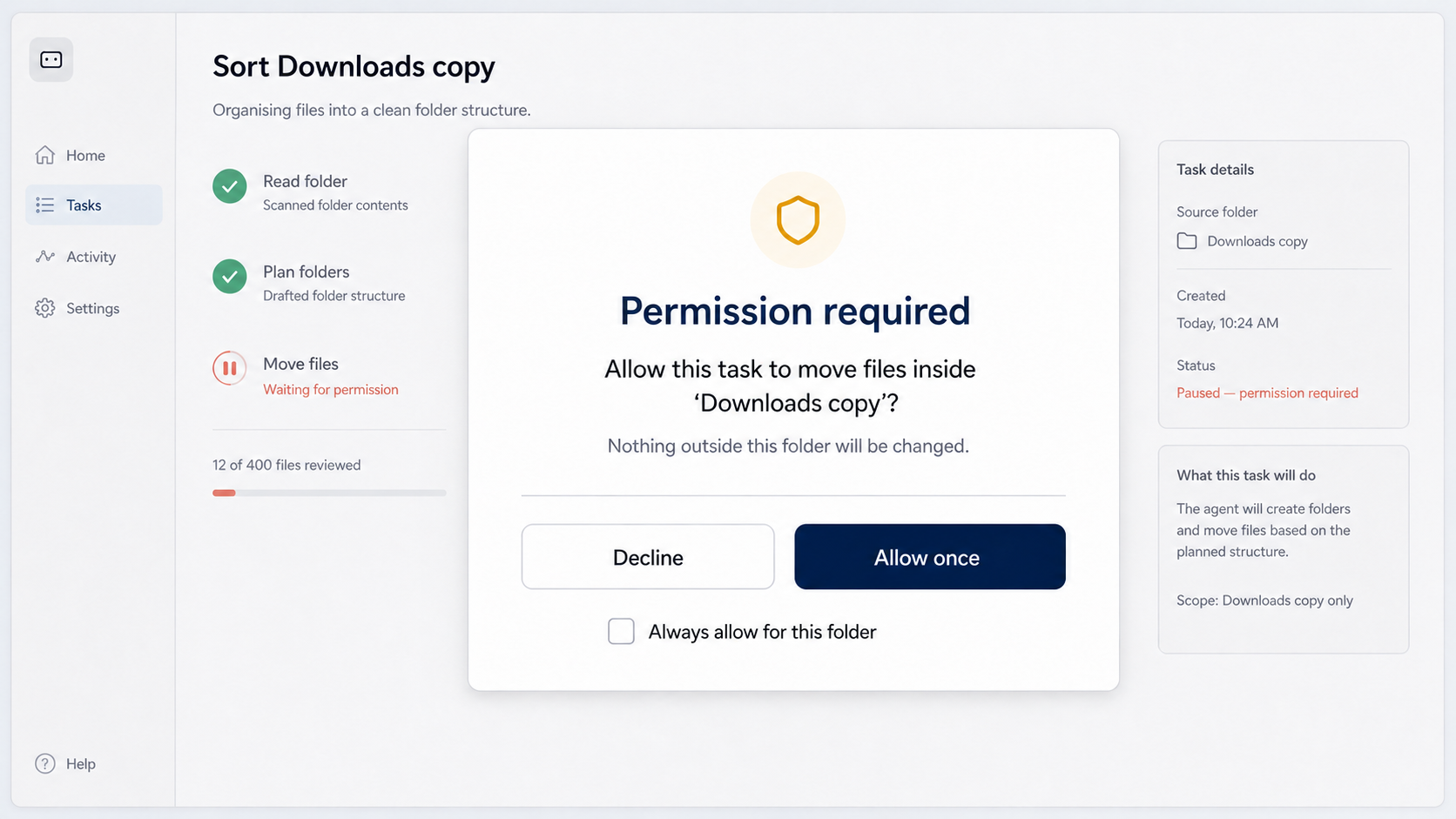
In practice it looks like a small box that pops up mid-task. The agent stops and asks before it acts. May I create this file? May I open this website? Nothing happens until you answer.
That pause is the seatbelt of this entire category. ChatGPT Work, for instance, shows you its progress as it goes and asks you to approve sensitive actions before it takes them. Every serious tool in chapter 8 has its own version of the same question.
Most tools also offer a tempting button, usually labelled something like “always allow”. Know what it trades away. You are not just skipping a click. You are giving up the pause where you get to see what the agent is about to do before it does it.
My advice for your first few weeks: leave the asking switched on. Let an agent earn “always allow” the way an assistant earns “just book it”: by being right, repeatedly, while you were watching.
Chapter 6 is devoted to trust and safety. For now you only need the principle: an agent's hands can only move where your permissions let them.
The loop: try, check, try again
Now for the part no product page explains properly, and it happens to be the part that matters most.
Give a good assistant a fiddly job and they do not perform it once, blindly, and hand it in. They try something, look at what happened, spot the problem, fix it, and go again. When it is right, they tell you what they did.
Agents work in the same rhythm, and it is called the loop: attempt, check, fix, repeat, then report.
Watch the loop catch a real snag. Say your brief mentions a file called invoices-june.pdf, but the folder actually contains Invoices_June_FINAL2.pdf, because of course it does.
Chat would cheerfully write instructions referring to a file that does not exist, and never find out. An agent tries to open the file, gets “not found” back, lists the folder, spots the likely match, opens it and carries on. You learn about the whole diversion from one line in its report.
Nobody programmed that specific rescue. The loop produced it. The agent could see the result of its own action, an error message, and used what it saw to try again.
The report at the end has a name in this guide: the receipt. It is the agent's written account of what it did: files read, changes made, snags hit, decisions taken. Reading receipts is the supervision skill, and chapter 7 will make you quick at it.
Every page of this guide was drafted, checked and fixed by agents running this exact loop, and I have watched it recover from hundreds of snags like that mis-named file. It stops looking like magic and starts looking like a decent colleague surprisingly fast.
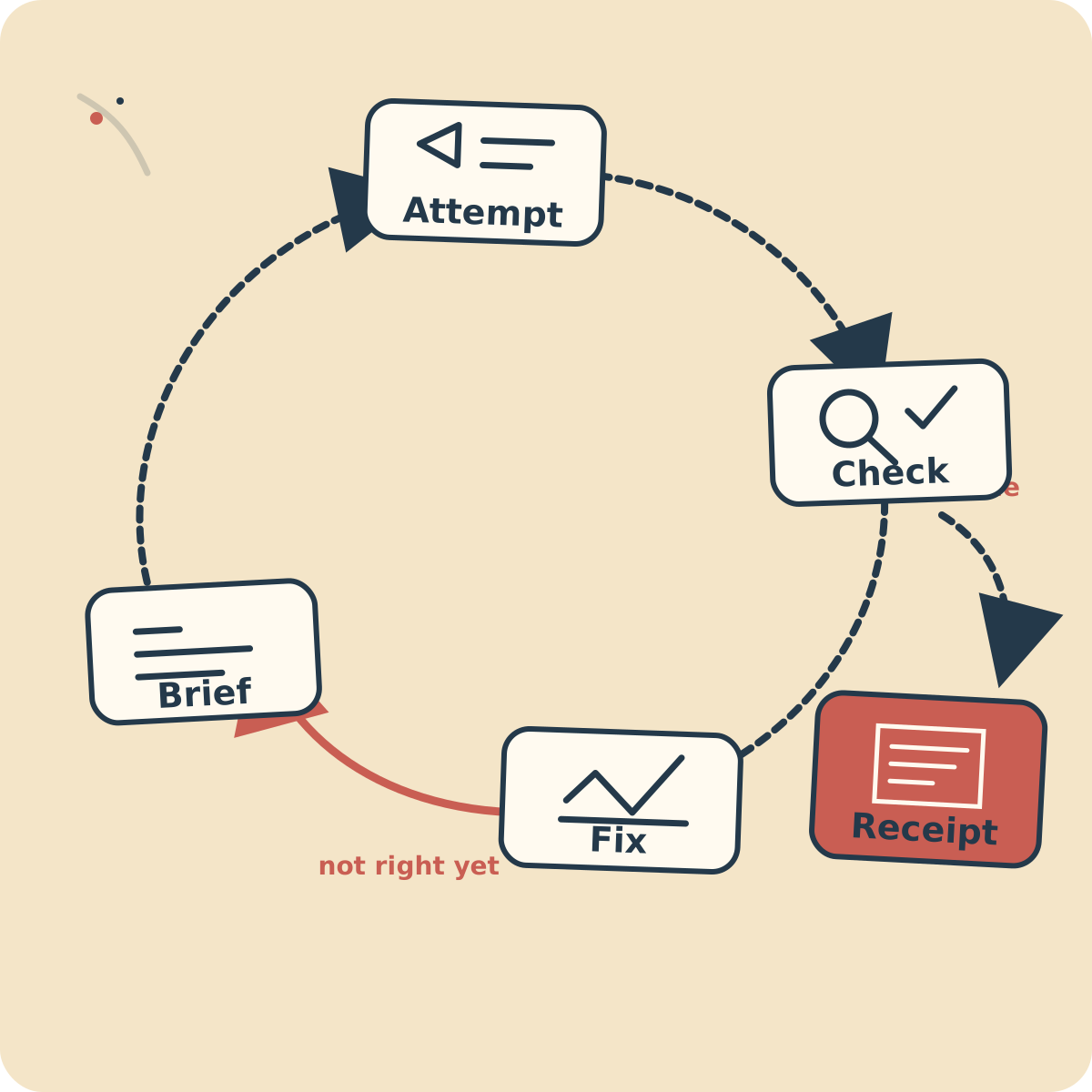
Chat gets one attempt and never finds out how it went. The loop is what turns a clever answer into finished work.
The four parts on one page
Here are the four parts side by side, each with the question it should make you ask about any tool you are sizing up. These four questions will outlive every product on the current market.
| Your new assistant's first day | What it really is | The question to ask of any tool | |
|---|---|---|---|
| Eyes | You show them the files and walk them through the job | Context: everything you have put in front of it. It sees what you give it, and nothing else. | What can it see, and how do I show it more? |
| Hands | You hand over a computer and the logins they need | Tools: what it can operate. Files, a live browser, spreadsheets, other apps through connectors. | What can it actually do, rather than just discuss? |
| Permissions | You agree what they may do without asking you first | Your standing rules for when it must stop and check with you before acting. | What does it ask before doing, and can I tighten that? |
| The loop | You check their early work and they redo what is not right | It tries, checks its own result, and goes again until the job passes its own check. | Does it check its own work, and does it show me a receipt? |
One task through all four parts
Now run one real job through the whole anatomy. Say you have 38 invoice PDFs sitting in a folder, and you want one clean spreadsheet with a total per supplier. You met this pile in chapter 1, and in chapter 9 we hand the identical job to five different tools and publish exactly what came back.
Eyes. You give the agent the invoice folder, plus one example spreadsheet whose layout you like. It can now see 38 invoices and a target format. It cannot see anything else, which is exactly how you want it.
Hands. It opens each PDF, reads off the supplier, date and amount, and builds the spreadsheet in the layout your example showed it. You type none of this.
Permissions. Before it saves the new file into your folder, it asks. One question, one click, and you knew about the only change it made before it was made.
The loop. Its own cross-check finds that the grand total does not match the column sums. It goes back through the pile, finds an invoice it counted twice under two different file names, keeps one copy, and notes the decision in the receipt: which file, which duplicate, what it did about it.
That flagged duplicate is the moment worth staring at. You did not catch the error. You never even saw it happen. The work arrived finished, checked and explained.
The bit chat never had
Read that walk-through again and notice who is missing: you. Between handing over the brief and reading the receipt, you were not needed.
Chat could always draft things. What chat could never do is find out whether its draft actually worked. Ask it for the eight steps to combine your invoices and it hands you its best guess. If step five fails on your machine, chat will never know. You were the error handler.
The loop moves the error handling inside the machine. The agent acts, sees the outcome of its own action, and acts again. That feedback, not a bigger brain, is the ingredient chat never had.
Which is why the test from chapter 1 keeps working. Who does the typing? When it is you, then you are the eyes, the hands, the permissions and the loop, all at once, on top of your actual job. Delegation starts when the machine takes over all four parts and leaves you the one role that matters: manager.
Six words that decode any product page
You now own the mental model. Here is the vocabulary that goes with it, one line each, so no pricing page or press release can wrong-foot you again.
- Agent: software that does the work on your computer, end to end. If it can only discuss the task, it is chat.
- Context: everything the agent can currently see. The files, pages and instructions you have put on its desk.
- Tools: what it can operate rather than talk about. Files, a browser, spreadsheets, connected apps.
- Permissions: your standing rules for when it must stop and ask you before acting.
- Connectors (sometimes labelled “MCP”): plugs that let the agent reach your other apps, such as your file storage, calendar or team chat.
- Token: the unit AI companies count usage in, roughly three quarters of a word. You need this only to decode pricing pages, nowhere else.
That is the entire glossary this guide will ever ask you to hold. Everything else is marketing.
You were qualified for this already
Next time a product page announces “autonomous agentic workflows”, translate it calmly: eyes, hands, permissions, loop. Ask the four questions from the table and watch the fog lift.
And notice what kind of knowledge this chapter handed you. Nothing technical. What can it see, what can it touch, what may it do alone, how does its work get checked. Those are the questions you would ask about any new starter on your team.
You have been qualified to manage this assistant for years. In the next chapter, you finally hire one: tonight, fifteen minutes, on a copy of your messiest folder.