Trust, Safety and the Undo Button
Will it delete my files? Will it leak my data? Honest answers, the safety rails already built in, and the one-line test that tells you what is safe to hand over.

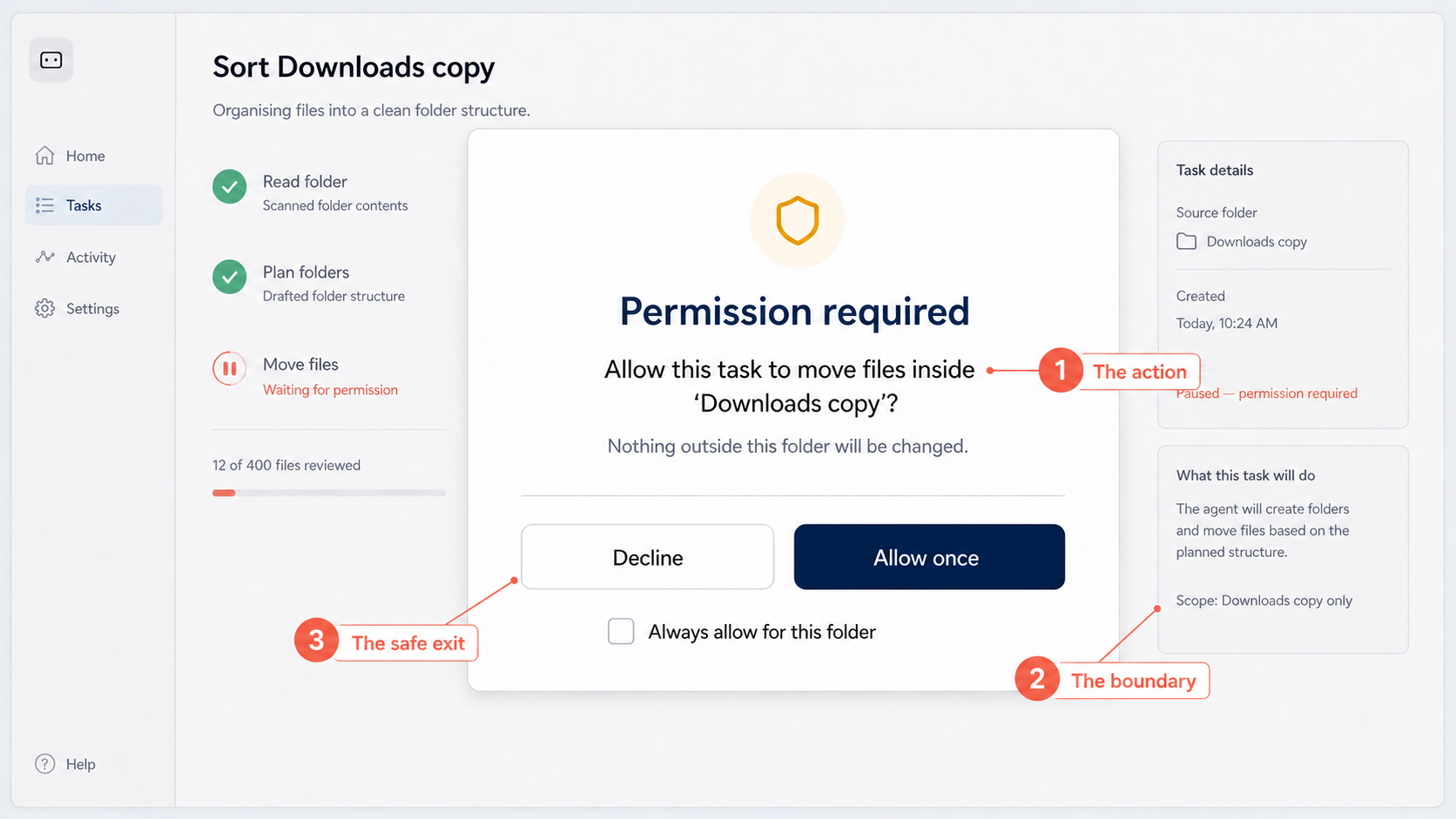
Say you got to the end of chapter 4. The folder is copied, the brief is pasted, and a small window has just appeared: the AI is asking for permission to open your files.
Your cursor is on Allow. And you stop.
That pause is not a failure of nerve. Forty years of computing taught all of us the same thing: unfamiliar software asking for access is how bad things start.
So this chapter will not tell you to relax. It will do something more useful: name the fears properly, show you the rail that already exists for each one, and hand you a one-line test that sorts safe tasks from risky ones for the rest of your working life.
The four fears, said out loud
When someone says they don't trust AI on their computer, it is nearly always one of four specific fears underneath. Worth naming each one, because each has a different answer.
One: I will break something. Click the wrong button, grant the wrong permission, and suddenly the laptop is doing things I don't understand and can't stop.
Two: it will delete something I need. The report only I have a copy of. The folder that took a year to build. Gone, because a machine misread an instruction.
Three: it will leak company data. A client list quietly uploaded somewhere it should never have gone, and six months later I am the cautionary tale in the IT department's all-staff email.
Four: I will look stupid. Nobody says this one out loud. It sounds like: what if I set it up wrong, or IT catches me using it, or I have to explain to my manager that the AI did it?
Not one of those is silly. They are the exact worries a sensible manager has before handing real work to any new starter: too much freedom, lost work, loose talk, and embarrassment.
And good managers do not answer those worries by refusing to delegate. They limit what can go wrong, insist on a written record, and check the work. That is precisely what the rest of this chapter sets up.
One more thing before the rails. Caution has a price too: left unexamined, these four fears will quietly decide that you are still doing everything by hand this time next year.
The rails already built in
The companies behind these tools know your fears are the reason most people never move past chat. So the safety rails are not an afterthought bolted on later; they are the product. Four of them matter.
It can open your files, and the rail is that it asks first. That small window is called a permission prompt, and it is a consent moment. Nothing has been touched when it appears, and nothing gets touched until you answer.
And saying no is always safe. Decline, and the task simply stops and waits for you; nothing breaks because you refused.
This is the pattern across the whole category, not one vendor's kindness. ChatGPT Work shows you its progress as it goes and stops for your approval before sensitive actions. Claude Cowork works inside the folders you choose for file tasks by default; it can reach further, into your browser or connected apps, but only through the same ask-first permissions.
One warning while we are here. At some point a tool will offer to stop asking, and “always allow” is real convenience that trades away the pause keeping you in charge. While you are new, keep the pause.
It can do real work, and the rail is that the work is contained. Some tools run in what engineers call a sandbox: a walled-off workspace where the agent can act without reaching the rest of your machine.
ChatGPT Work, for instance, runs in the cloud. It works on the files you hand it, on OpenAI's computers, then passes back the finished result; it is not wandering your hard drive. A desktop tool like Cowork does sit on your machine, which is exactly why it is scoped to the folders you pick.
It works while you look away, and the rail is the receipt. Every run ends with a written account of what was done: files opened, changes made, steps taken. This guide keeps calling it the receipt because that is exactly how to treat it.
The receipt is the difference between “I hope that went well” and “I can see everything that happened, in order, and I have a question about line four”.
It can make changes, and the rail is that most changes undo. A renamed file renames back. A moved file moves back. A bad draft gets deleted, and the receipt tells you exactly what to reverse.
Where an undo genuinely does not exist, for a sent email or a payment, you will find that task sitting in the red row of the table further down. That is not a coincidence. That is the whole system.
The rail you bring yourself: copy first
Everything above is the vendor's engineering. The strongest rail is yours, it costs ten seconds, and you already used it in chapter 4.
Before an agent touches a folder that matters, duplicate the folder and hand it the copy.
Say you have the invoice pile: 38 PDFs you dare not lose. Duplicate the folder, point the agent at ‘Invoices copy’, and the worst possible outcome collapses into “delete the copy and go again”.
Fear one and fear two, the breaking and the deleting, mostly dissolve right here. Not because nothing can go wrong, but because you have made going wrong cheap.
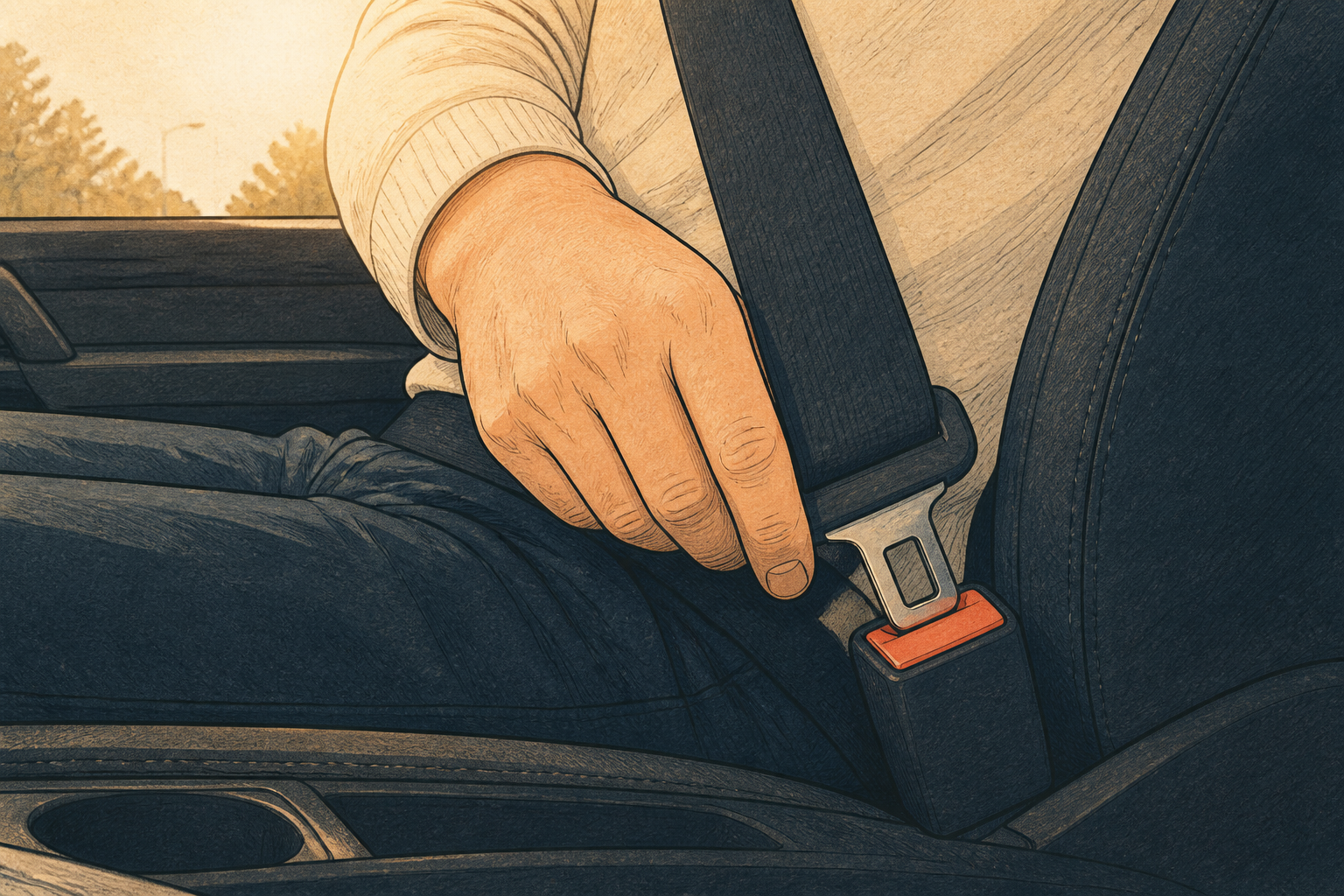
Vendors build the seatbelts into the car. Copy-first is you actually clicking one on. Do it every single time until it stops feeling like a step.
What actually leaves your machine
Now fear three, the data fear. It deserves the most honest treatment here, because it is the one your employer shares.
Start with scope. When a tool “can see your files”, that means the files you gave it: the folder you pointed it at, the document you have open, the things you attached. It does not mean your whole digital life.
The exact scope is tool-dependent, and you should treat it that way. Cowork sees the folders you choose. Copilot's Agent Mode works on the Word or Excel file in front of you. ChatGPT Work works from the files and apps you connect or upload.
Here is the honest paragraph. Anything you hand a cloud tool does leave your machine and is processed on the vendor's computers. Whether it also trains future models depends on the vendor and a setting you control.
As we write this, on personal paid plans: Claude uses your content only if you switch the model improvement setting on. ChatGPT uses it by default and you switch it off under data controls. Microsoft says Copilot content on consumer Microsoft 365 plans is not used to train its foundation models. Gemini uses it while its activity setting is on, which is the default.
Those four sentences were checked in August 2026 and these pages change. Before you hand over anything sensitive, spend two minutes on the vendor's own data page, for your plan, read this month.
The work-account question
Which brings us to the real risk, and it is not the one in the headlines. The risky move is not using AI at work. The risky move is using a personal account on company files without telling anyone.
If your company provides an approved account or tool, use that; it is what it is for. If you do not know whether it does, ask. Asking is free.
I know exactly why people don't ask: fear four again, the looking-stupid one. So here is the message, written for you to steal.
Send that and you are no longer the person sneaking AI onto company files. You are the person IT points to as the one who did it properly.
And if the answer is “not yet”, you have lost nothing. Practise at home on your own admin until the policy catches up; the skill transfers on day one.
The one-line risk test
Everything so far protects you while a task runs. The sharper skill is choosing which tasks to hand over at all, and it comes down to one question. It has a name worth keeping: the reversibility test.
One question does the whole job of risk assessment. Yes means green. Only with effort means amber. No means the task stays yours for now.
Yes, easily? Then the task is green, and you can let an agent at it freely. Sorting a copied folder is green.
Summarising 12 competitor websites into a fresh two-page briefing note is green too. The agent only reads; the only thing it creates is a new file.
Amber has two triggers. A task that touches real files is amber, so you work on a copy. And a task that produces numbers or text someone will act on is amber too, so you review the output before it is used.
That second trigger is why the invoice pile is amber, not green: the 38 PDFs sit untouched, but the numbers feed real decisions, and numbers someone acts on are always amber.
And if there is no undo at all, it is red, and while you are new, red simply means no.
Run your own week through this test and something reassuring usually happens: most of the tedious work comes out green. The genuinely scary tasks were never the ones worth delegating anyway.
| What earns the colour | Examples | Your move | |
|---|---|---|---|
| Green | Reversible in minutes. Works on a copy, or only creates new files. | Sorting a copied folder; competitor sites into a fresh briefing note. | Delegate freely. Read the receipt when it is done. |
| Amber | Touches original files, or produces numbers or text someone will act on. Recoverable, with effort. | Invoice PDFs into a spreadsheet someone will act on; renaming originals in place; drafting replies for you to send; filling a web form you then submit. | Copy first where you can. Review everything before it goes anywhere. |
| Red | Irreversible, or one wrong number is a disaster. No real undo exists. | Sending unreviewed messages; live payments or anything with money; deleting originals; anything needing your passwords. | Keep the typing yourself. Revisit in a few months, not now. |
Four kinds of task stay red for now, whatever the tool and however confident you start to feel.
- Anything irreversible. Deleting originals, overwriting the only copy, emptying anything. If it cannot come back, it is not a task to delegate while you are learning.
- Anything another human receives unreviewed. Emails, messages, posts. The agent drafts, you read, you press send. That order never reverses.
- Live money. Payments, orders, refunds, anything that holds a card number. Not yet, and no exceptions.
- Your passwords. Never put credentials in a brief. If a task needs you logged in somewhere, you do the logging in, and you watch what happens next.
One door to leave shut for now
A note for Windows readers, because you will hear about this one. Microsoft is testing Copilot Actions on Windows 11: an agent that can operate the desktop itself inside a sandboxed area called Agent Workspace.
As of August 2026 it is an experimental preview for early testers on the Windows Insider programme, and it is switched off by default. Off by default is Microsoft telling you, correctly, that it is not ready for beginners. Leave it off.
If your work lives in Office, the sensible on-ramp is the one already fully released: Agent Mode inside Word, Excel and PowerPoint, working on the document in front of you.
Trust grows the way it always has
You would not sign off a new assistant's first week without reading their work. You also would not still be checking every comma a year in. Trust in an agent moves along exactly that line, and receipts are how it moves.
The habit is simple. For your first ten runs, read the whole receipt. After that, spot-check three items against the source every time.
And when a tool or a task type is new to you, watch the first run live.
For the invoice pile, spot-checking means opening three of the 38 PDFs and confirming their numbers landed in the right cells. Anything with numbers that travels onward to other people gets checked against source every time, forever.
That is not distrust of AI. That is what signing your name to a piece of work has always meant.
Notice what happened to fear four along the way. The person who asks IT, copies first and spot-checks receipts is not the one who looks stupid; they are the most careful operator in the building. The person taking the real risk is whoever pastes client data into a personal account and hopes.
So keep all four fears. Just give each one a job: the breaking fear reads permission prompts, the deleting fear makes copies, the leaking fear sends that message to IT, and the looking-stupid fear checks the receipt.
Fear that has been put to work has a different name. It is called judgement, and it is why an agent plus you beats an agent alone.