Your First Task in 15 Minutes
Tonight, on a copy of your messiest folder, you will delegate real work to an AI and check the result. Exact words to type included.

There is a folder on your computer you never open on purpose. For most people it is Downloads: say 400 files deep, invoices next to holiday photos next to three copies of the same PDF with (2) and (3) in the names.
Tonight that folder gets sorted. Not by you.
In the next 15 minutes you will hand the job to an AI, watch it work, and read its report when it finishes. Those 15 minutes include finding the right button, one permission dialog, and the pause where you wonder if you have broken something. You have not.
One rule before anything else: the AI never touches your real Downloads folder tonight. It works on a copy you make first. If anything goes strange, you delete the copy and nothing ever happened.
That is the entire risk. Hold onto that and the rest is just following steps.
First, pick your tool
Chat tools talk. Tonight you need a tool with hands: one that can open a folder and move the files in it. Chapter 3 gave agents four parts, eyes, hands, permissions and a loop, and tonight you meet all four on your own machine.
The good news: if you already pay for AI, you probably already own one. Pick by what is on your card statement, not by reviews.
- You pay for Claude Pro: use Claude Cowork. It is a desktop app that works inside folders you choose, which makes it the natural fit for tonight. The walkthrough below follows it most closely.
- You pay for ChatGPT Plus: use ChatGPT Work. It runs in the cloud rather than on your machine and works from files you hand it or connect. Same brief, same habit; you give it the files from your copy instead of pointing at a folder.
- You live in Word and Excel with Copilot: use Agent Mode. It works inside the open document, so it cannot see your Downloads folder. Your version of tonight is two paragraphs down.
- You pay for none of them: $20 a month buys either of the first two, agent included. If you want a free taste first, the Comet browser will run small web errands for you, but it will not sort a folder.
| Where the agent sits | Where to find it | Plan you need | |
|---|---|---|---|
| Claude Cowork | A desktop app, working inside folders you choose | The Cowork app on Mac or Windows (web and mobile are in beta) | Claude Pro, $20/mo |
| ChatGPT Work | In the cloud, working from files you hand it or connect | Inside ChatGPT once you are on a paid plan | ChatGPT Plus, $20/mo (not the free plan) |
| Copilot Agent Mode | Inside Word, Excel and PowerPoint, editing the open file | In the Office apps, where it is now the default Copilot experience | Microsoft 365 Premium, $19.99/mo, or a Copilot licence through work |
| Perplexity Comet | In a browser, doing web tasks | Download the Comet browser | Free |
If Copilot Agent Mode is your tool, run tonight's pattern on a document instead of a folder. Save a copy of your messiest report, open the copy in Word, and ask Agent Mode to restructure it with clear headings and a summary of every change at the top.
Copy first, brief, permission, receipt. Everything below still applies; only the material differs.
Do not agonise over the choice. The skill you learn tonight transfers to every tool on the map in chapter 8, and you only need one to learn it.
Step 1: make the copy
On Windows: open File Explorer, click Downloads in the sidebar, press Ctrl+A, then Ctrl+C. Make a new folder on your Desktop called downloads-practice, open it, press Ctrl+V.
On a Mac: open Finder, click Downloads, press Cmd+A, then Cmd+C. New folder on the Desktop called downloads-practice, open it, press Cmd+V.
If your Downloads folder is enormous and the copy crawls, do not wait for all of it. Copy the most recent two or three hundred files into the practice folder instead. The exercise is identical.
Why the copy? Because it hands the agent a folder where nothing is precious. The worst case tonight is deleting downloads-practice and making another one, which costs about three minutes.
It matters enough to say a second time: the agent works on the copy, never the original. Make this your standing habit for every new task, not just tonight's.
Step 2: the brief
An agent is only as good as its brief. Chapter 5 turns briefing into a full skill; tonight you borrow one that already works.
Before you paste it, notice what it contains, because every line is doing a job.
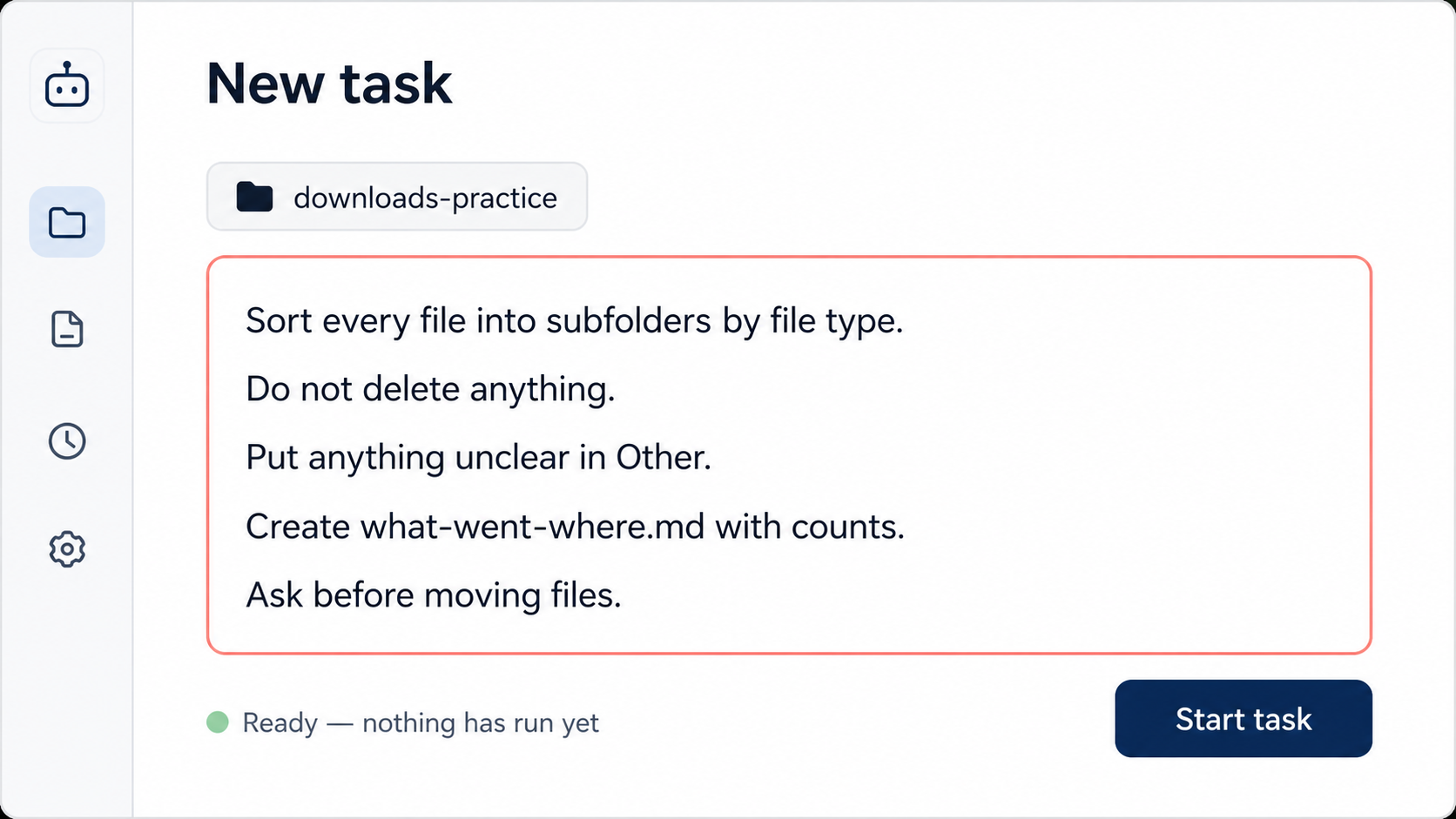
An outcome: sorted by type and month. Not a method, not twenty steps. You say what done looks like and let the agent work out how.
Hard boundaries: move only, and touch nothing outside the folder. Moving a file is easy to reverse; renaming and deleting are not, so tonight they are off the table entirely.
A receipt: the report. You are not going to eyeball 400 files to check the work. You are going to read a one-page summary and spot-check it, like any manager signing something off.
An escalation rule: ask before doing anything unlisted. This is the line that turns a guessing machine into an assistant that checks.
In Cowork, choose the downloads-practice folder when it asks where to work, then paste the brief and send it. In ChatGPT Work, start a new task, hand it the files from your copy, and paste the same brief.
Step 3: press go, then watch
Here is a first run, stage by stage, so nothing that happens surprises you.
First, some honesty about the fumbling. These products move their agent features around and rename them often, so if you cannot see an obvious starting point, hunt for words like agent, tasks or work in the interface, and give yourself two of the fifteen minutes just for wandering.
That is normal. Nobody finds it first try, and it says nothing about you.
It reads before it touches. The agent starts by listing what it found: rough counts by type, the date range, the odd thing it cannot identify. On 400 files this can take a minute or two. It is not stuck.
It narrates. You will see running progress notes as it plans folders and starts moving batches. Some tools narrate more than others. Let it talk; those notes become your receipt later.
The permission prompt
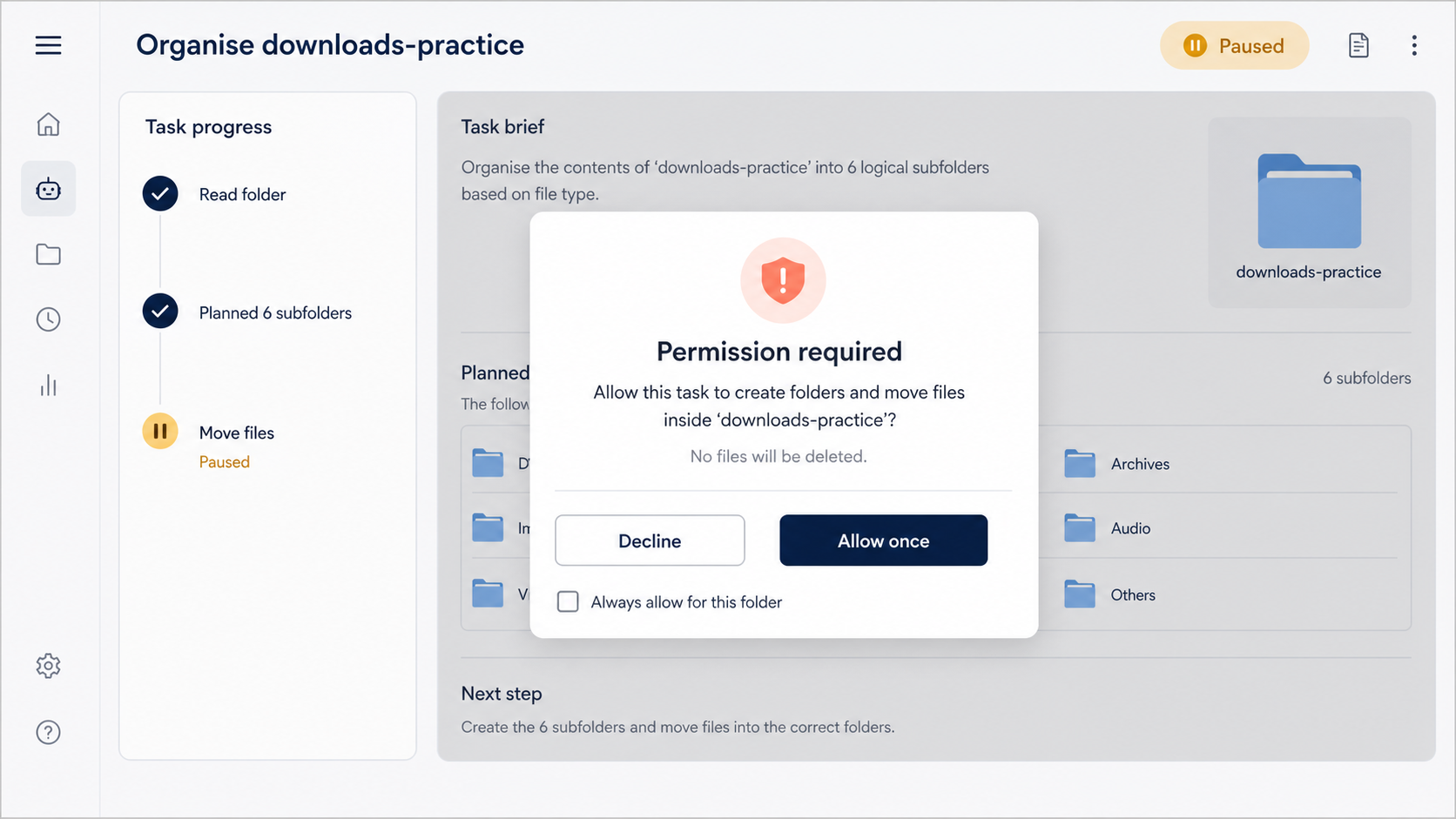
Early on, everything stops and a dialog appears. In some phrasing it asks: may I act on the files in this folder?
Beginners mistake this moment for an error. It is the opposite. Nothing has happened to your files yet, and nothing will until you answer.
Chapter 3 called permission prompts the seatbelt, and this dialog is the whole safety model in one question. Read it, check the folder it names is your copy, and allow it for this folder.
If there is an “always allow” option, leave it alone tonight. While you are learning, being asked is exactly what you want.
Always allow trades the seatbelt for convenience. There is a time for that, once trust has been earned over many clean runs, and chapter 6 covers how to earn it. Tonight is run one.
The mid-task question
Somewhere in the run, expect the agent to stop and ask you something. With a Downloads folder it is usually about the weird stuff: “I found 23 files with no extension. Should I inspect them to work out what they are, or put them straight in Everything else?”
Answer in one line and it carries on. This is not a malfunction, and it is not the tool being needy.
An assistant who checks instead of guessing is exactly who you want on day one. Your brief told it to ask, and it listened.
Then the actual work: folders appear, files stream into them, the counts climb. On a few hundred files, expect minutes rather than seconds. Make the tea.
Step 4: check the work
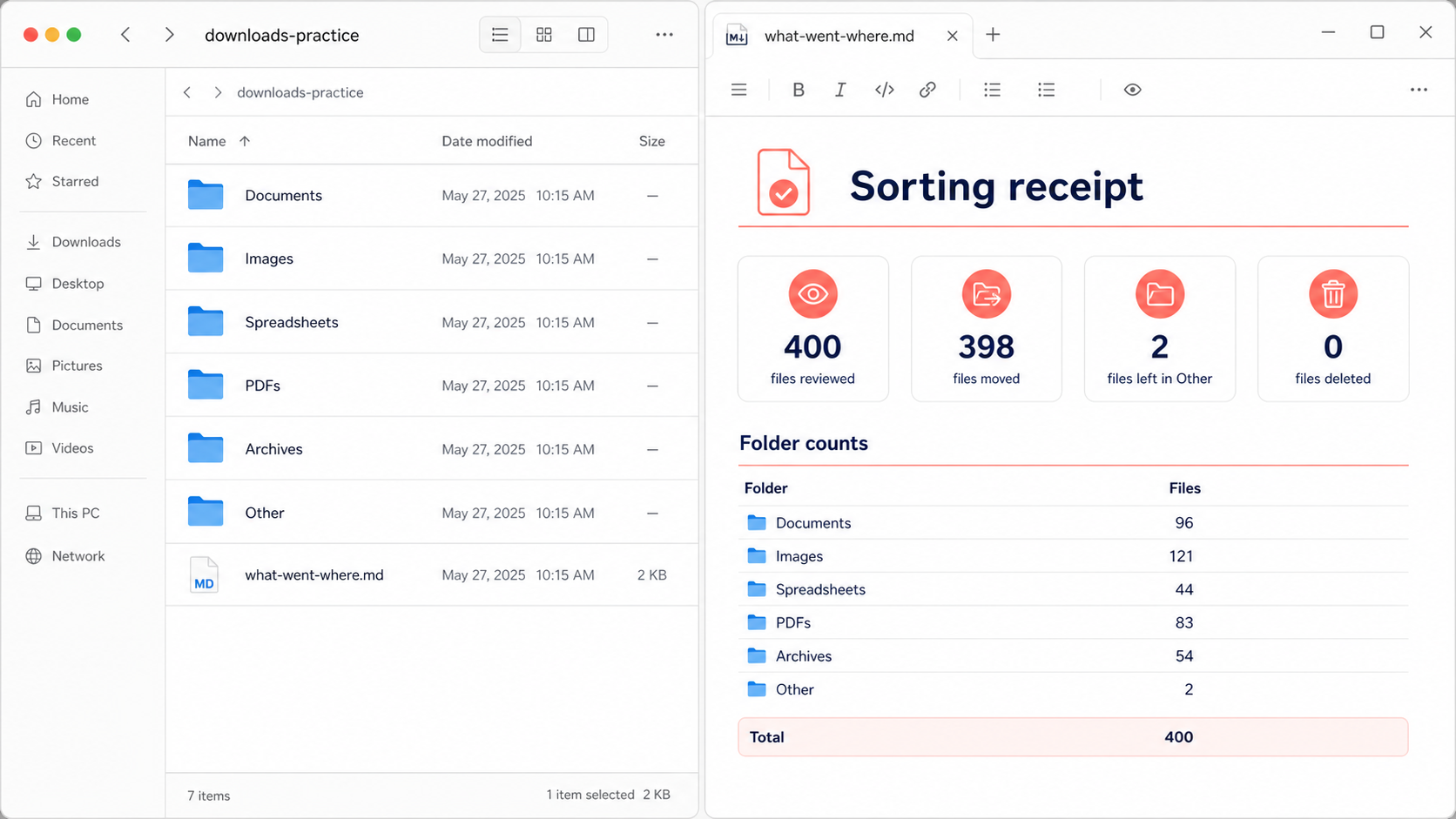
The run ends with a receipt: what-went-where.md sitting in the folder. Read it before you open anything else.
Reading receipts is the supervision half of delegation. It takes two minutes and it is the habit that keeps every later, bigger task safe.
Three things to check in the report:
- The arithmetic. If the folder held roughly 400 files and the report says it moved 214, something got skipped. Ask it what happened to the rest.
- The folder list. Does it match the brief? Type folders, month subfolders inside them, nothing creative you did not ask for.
- The unsure list. Read every line of it. This is the agent showing you its judgement calls, which is precisely where mistakes hide.
Now spot-check three files. Pick one from the report and confirm it sits where the report claims. Open one document and check it still opens. Then look at your real Downloads folder: untouched, exactly as messy as you left it.
What does good look like? The report reads like a handover note from a careful colleague: plain numbers, a folder list you can scan, and honesty about the edge cases rather than silence.
Then finish the job the agent could not: file the handful of items on its unsure list yourself. Two minutes, and the folder is genuinely done rather than nearly done.
When it stumbles
First runs stumble. Rarely dramatically; usually one instruction quietly falls out of the brief.
The classic with this task: you get tidy type folders and no month subfolders. The report reads as finished, but step 2 of your brief just did not happen.
Do not start over, and do not type a paragraph of complaint. Point at the missing step and ask for only that fix:
One line, one more short run, done. Talking to it like a colleague who skipped a line of the brief works better than treating it like a broken vending machine.
Chapter 7 covers the four ways agents fail and the sixty-second check for each. Tonight, one pattern is enough: name what is wrong, ask for only that fix.
And if a run goes properly sideways? Delete downloads-practice, copy the folder again, start fresh. Total cost: about three minutes, which is what the copy bought you.
One more habit while it is fresh: save the brief. Keep first-task-brief.txt somewhere you can find it, because a brief that worked is an asset you will reuse and adapt for the next task.
As for your real Downloads folder: once you have watched a clean run on the copy and checked the receipt, sorting the real thing is your call to make. Copy-first stays your standing rule for every task that is new; graduation on a task you have already checked is earned.
Name what just happened
A brief, a permission granted, one question answered, a receipt checked. Hundreds of files moved and you never touched one.
Run the chapter 1 test on tonight: who did the typing? Not you.
You described an outcome, granted permission, answered one question and checked a receipt. That is not using a clever tool. That is managing.
And if part of you worries that tools like this are why your job feels shaky, notice which side of the work you just stood on. The person who writes the brief and signs off the receipt is not the one being replaced by it.
It took 15 minutes because every part was new, including the fumbling. The second task takes five, because the only new thing tonight was you.
Next: why that brief worked, and how to write your own for anything on the delegation list you made in chapter 2.